
Asset details page
When you open an asset on the Assets page, it fills the right side of the page: a card with the asset’s details at the top, and tabs below for its jobs, history, parts, and more.
The asset card
The card at the top shows:
- The assets above it in the hierarchy, as a path you can click
- Asset name, number, and status (Active or Disabled)
- Manufacturer, model, serial number, location, and group
- Links to each of the tabs below, with how many items each holds
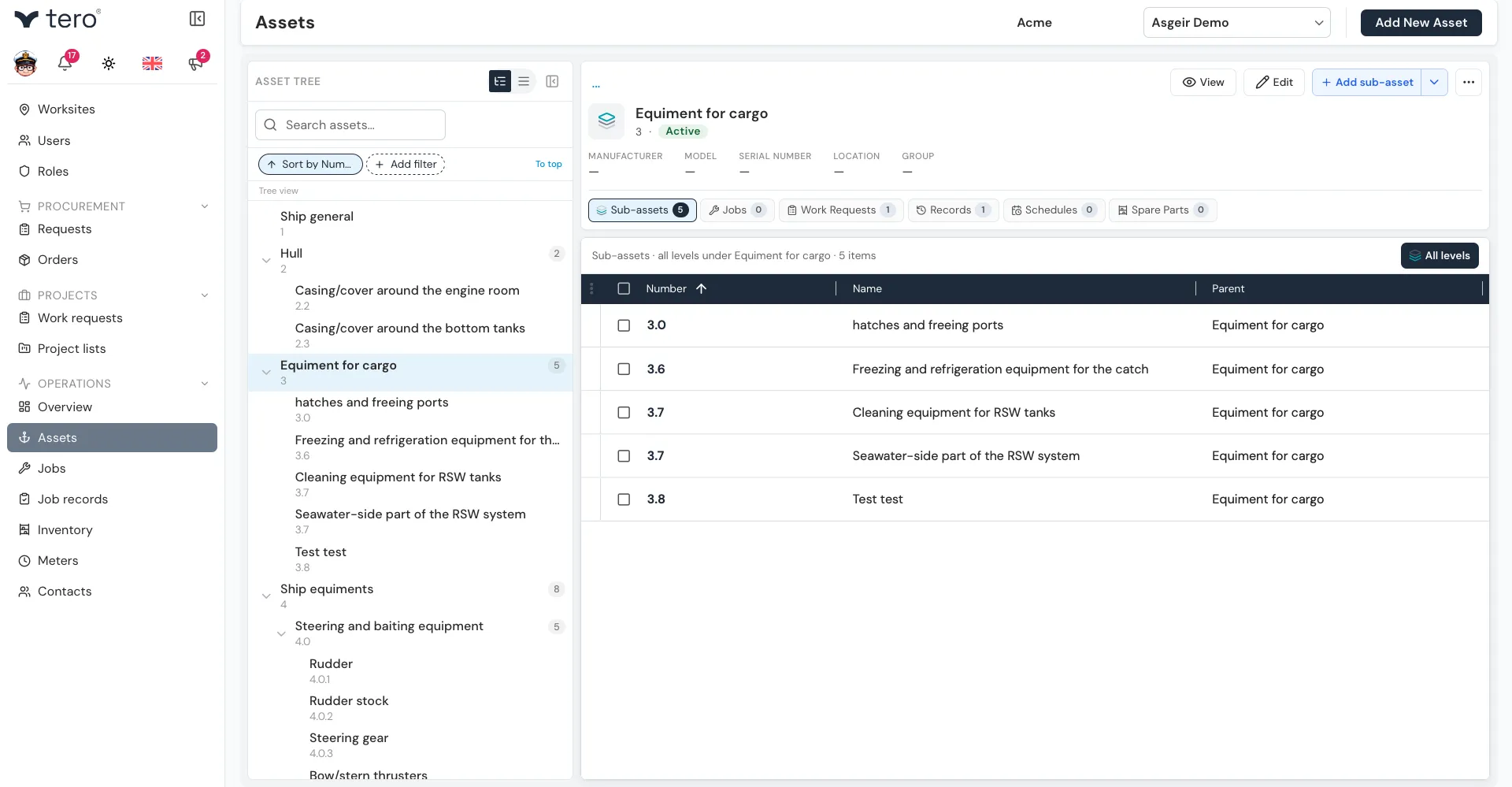
The buttons on the card:
- View (eye icon) — opens the full asset in a side panel, with its specifications, comments, attachments, and QR code. Clicking the asset’s name does the same.
- Edit (pencil icon) — edits the asset. See Editing an asset.
- Add — adds a sub-asset, job, work request, record, schedule, or spare part to this asset. Its label changes with the tab you’re on; click the down arrow beside it for the full list.
- Three horizontal dots (⋯) — opens Attachments and Meters in a side panel, and has Delete.
Tabs
Beneath the card are tabs for each aspect of the asset. On each tab, the All levels toggle includes the asset’s sub-assets too — see Asset hierarchy explained.
| Tab | Shows |
|---|---|
| Sub-assets | The assets directly under this one |
| Jobs | Open jobs on this asset |
| Work Requests | Open work requests on this asset |
| Records | Completed jobs and work requests — title, status, when it was completed, and who did it |
| Schedules | Recurring job schedules for this asset |
| Spare Parts | Inventory items that fit this asset |
| Condition | Live sensor readings and alarms — only shown on assets that have sensors |
Click any row to open it.
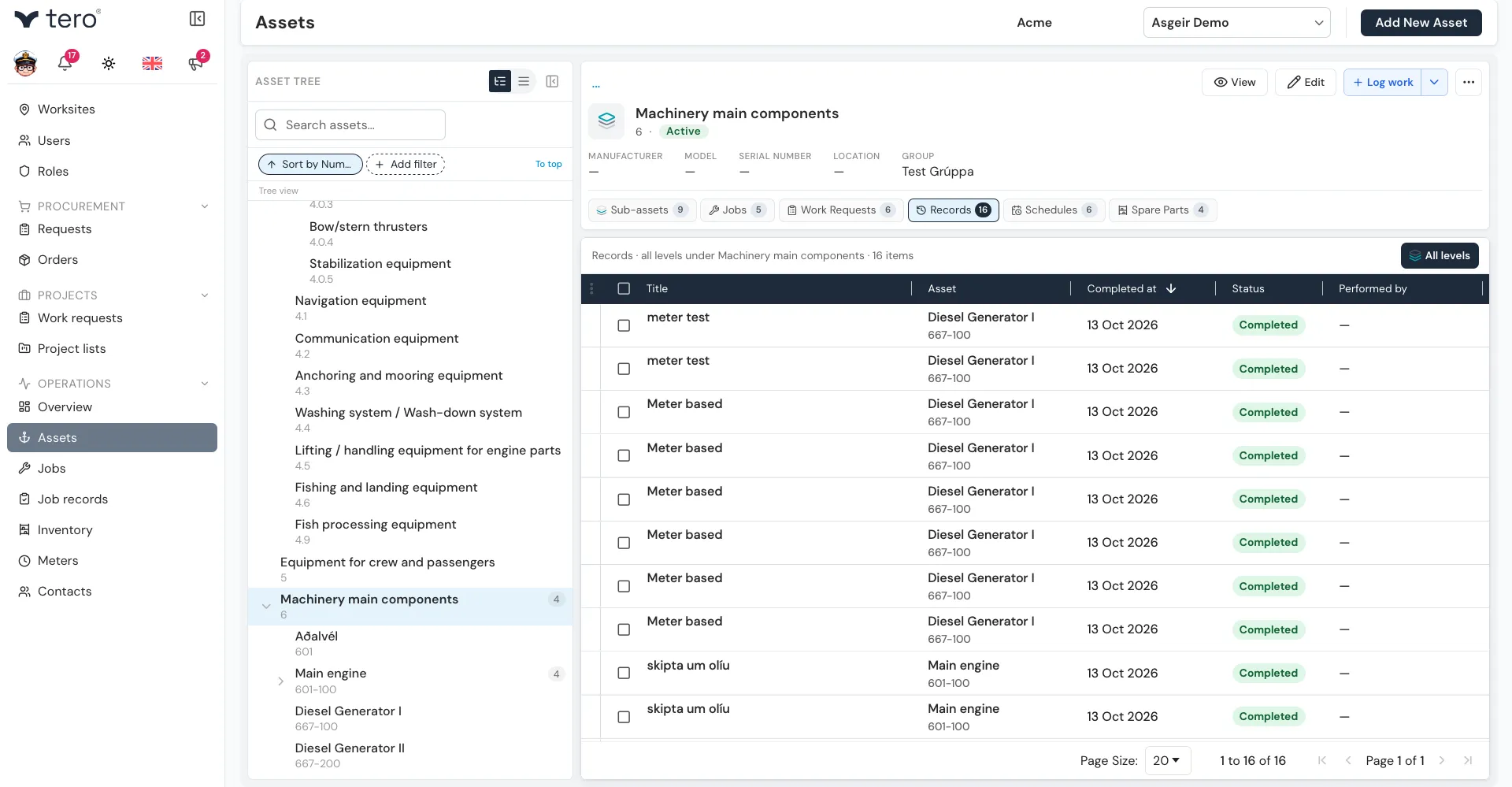
Spare Parts
The parts you typically need to maintain this asset, with each part’s number, stock level, and storage location.
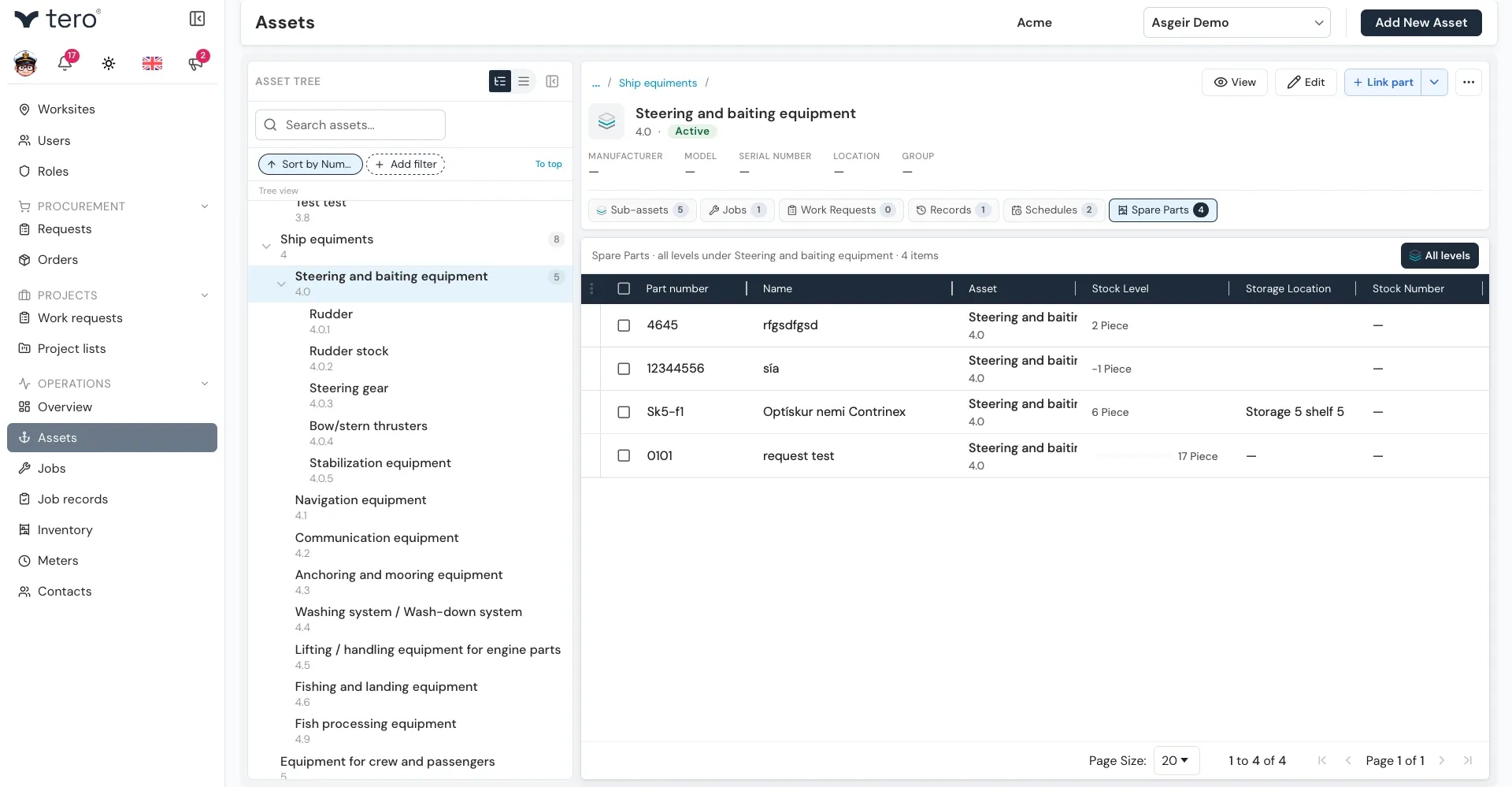
To link a part, use Link part from the Add button. To raise an inventory request for a part, click the three vertical dots (⋮) at the start of its row and choose Purchase Request — see Requesting an inventory part. Remove from asset in the same menu unlinks the part without deleting the inventory item.
Attachments
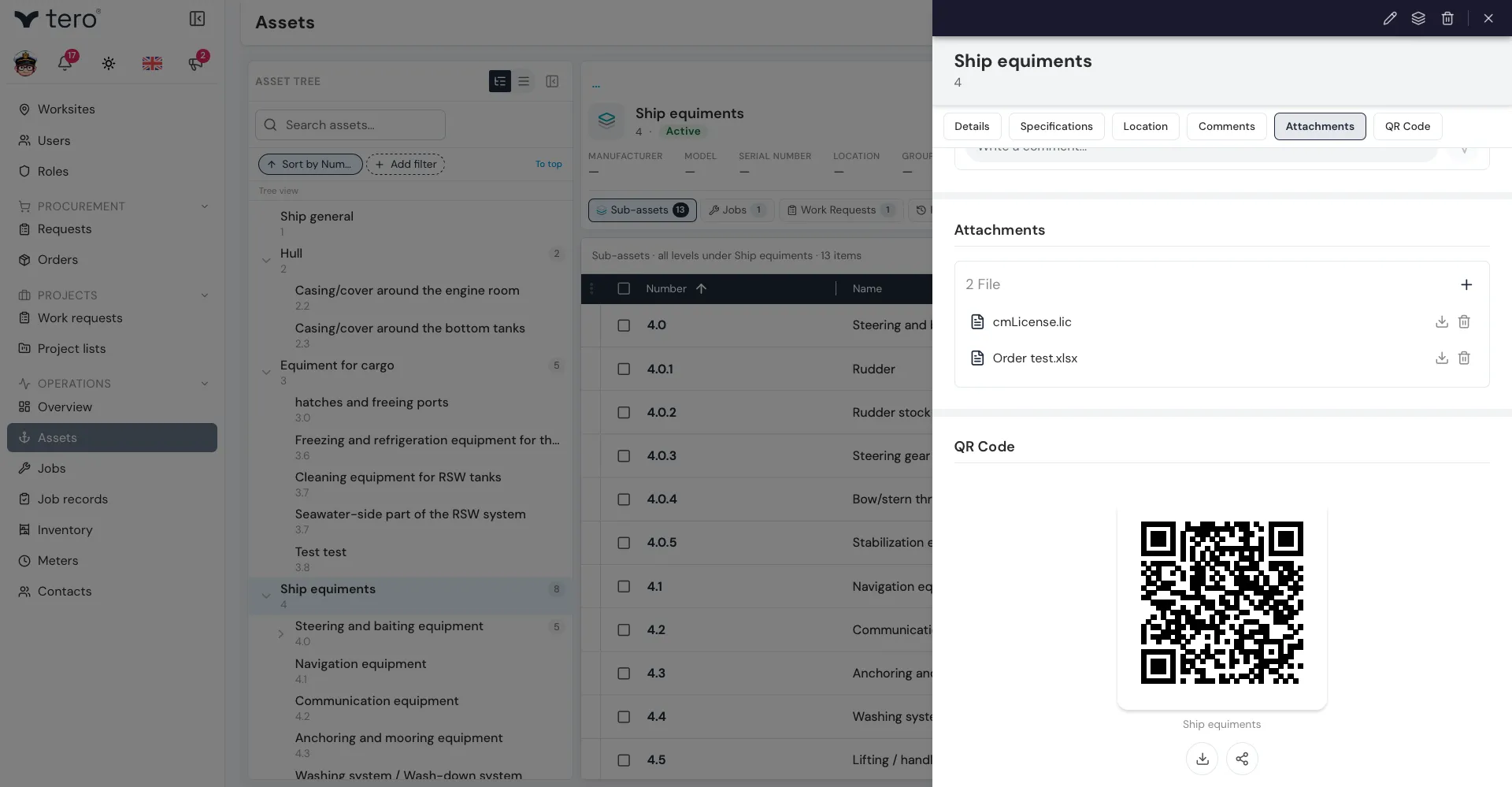
Manuals, schematics, certificates, photos — anything that should live with the asset. Open them from the three horizontal dots (⋯) on the asset card, then choose Attachments. Click + to add files, or drag them in.
Meters
Every meter attached to this asset, with its current reading. Open them from the three horizontal dots (⋯) on the asset card, then choose Meters. See Logging meter readings.
QR code
Click View on the asset card, then QR Code in the row of section links at the top of the side panel. See Generating and printing QR codes.