
Logging meter readings
Meters track measurable resources — engine hours, fuel litres, water consumption, distance travelled. Readings drive meter-based preventive maintenance: a schedule can create a job every set number of units on a meter.
Finding a meter
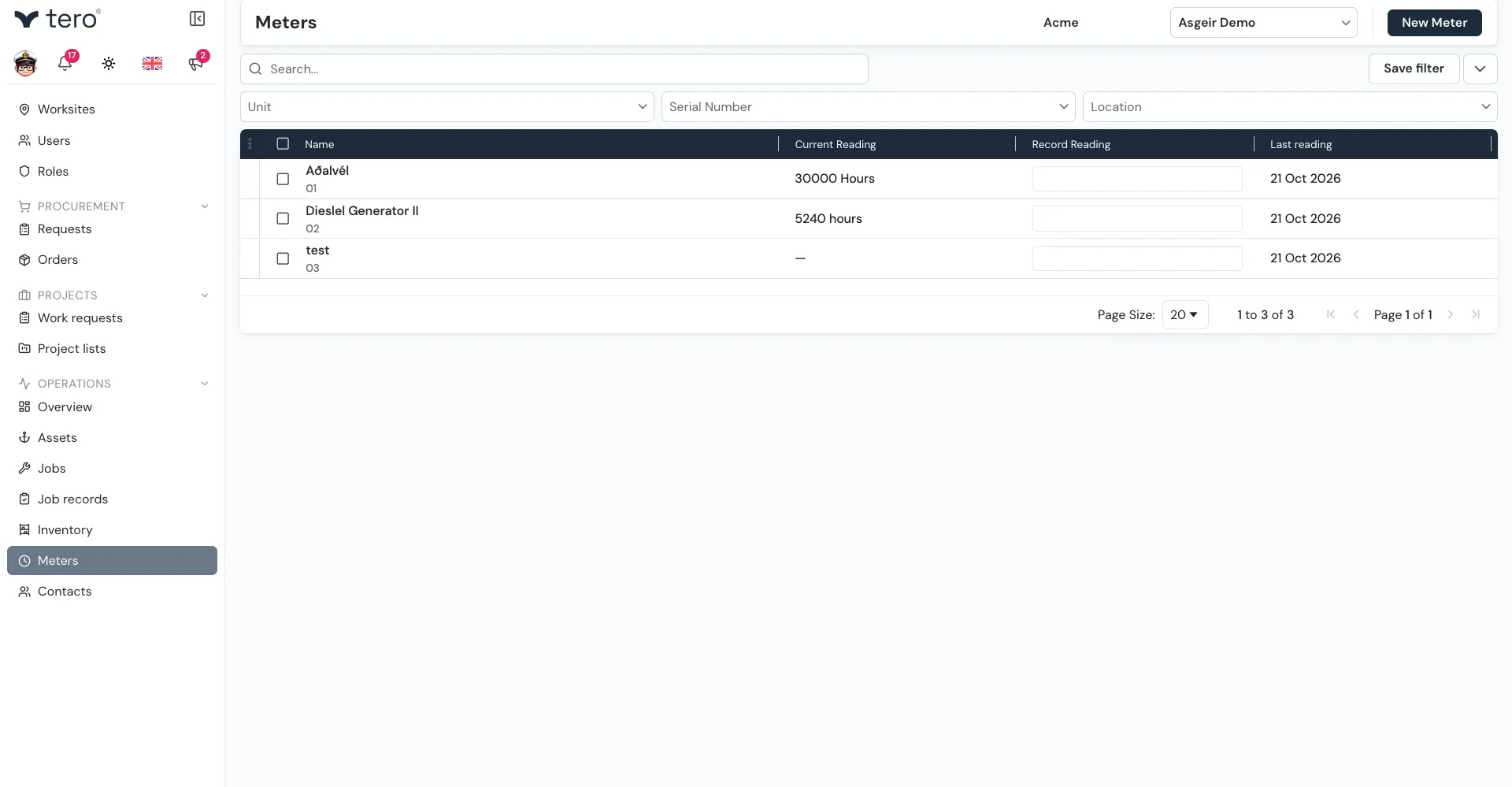
You can reach all meters from Operations → Meters in the sidebar.
Adding a reading
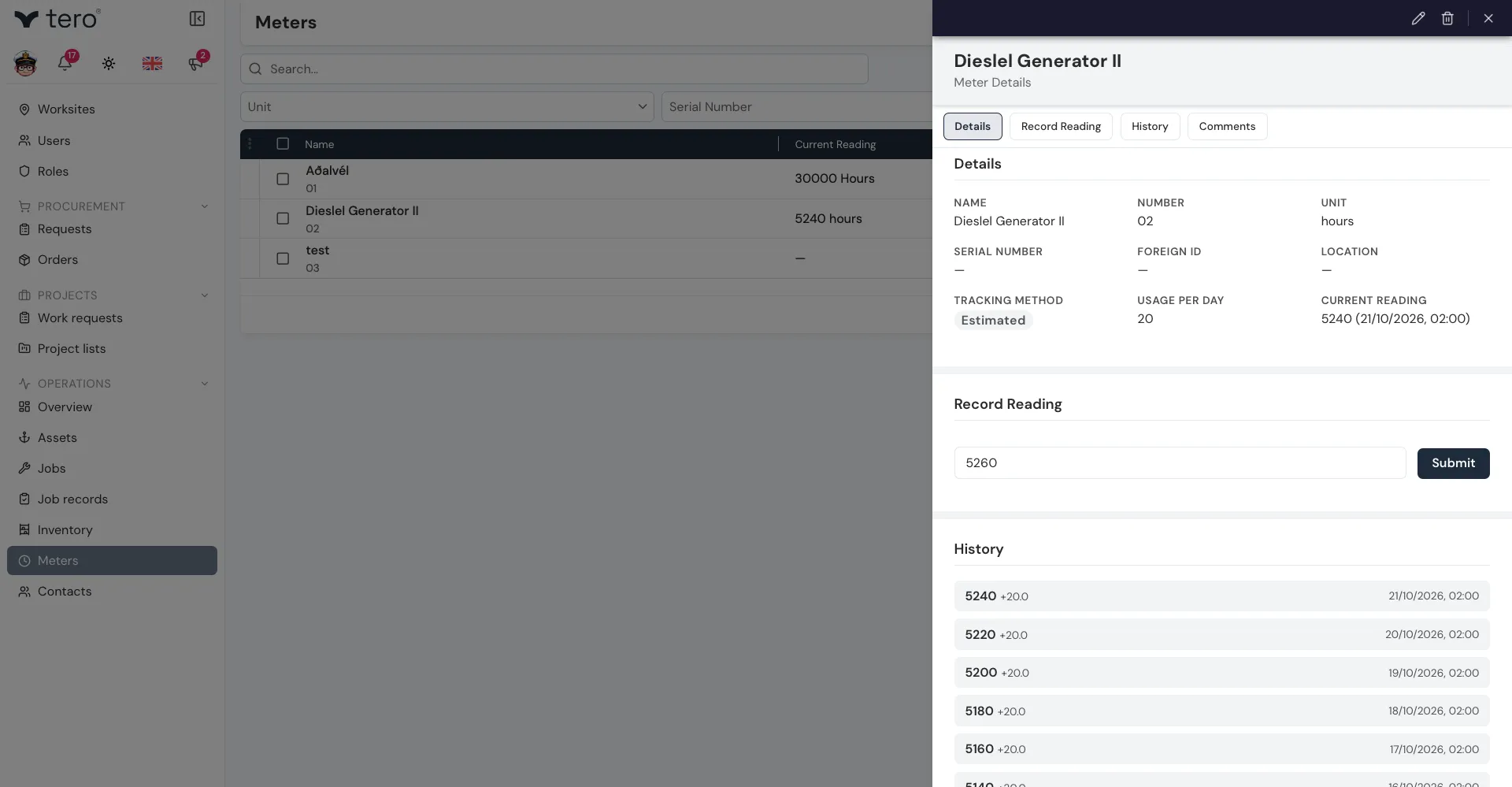
Click a meter to open it, then, under Record Reading, enter the current value and click Submit.
Alternatively, type the reading into the Record Reading column of the Meters list and press ⏎ Enter.
If the new value is lower than the current reading, Tero asks you to confirm before recording it.
Uploading readings from a file
If your company has it turned on, the Meters page has an Upload readings button for recording many readings at once from a file. Drop the file onto the upload area or click it to choose one, review the readings it found, then click Apply.
The file must be a plain text file (.dat or .txt) with one line per meter in the form <foreign ID>;<value>. Lines are matched to the worksite’s meters by each meter’s Foreign ID.
Meter-based jobs
See Setting up preventive maintenance for creating schedules that run on a meter.
Tips
- Read meters at the same time of day if possible — consistency matters for trend analysis.
- Usage Per Day in the meter settings sets the meter’s Tracking Method to Estimated: the reading then advances automatically by that amount each day, between the readings you record.