
Browsing assets
Operations → Assets opens the Assets page. On the left is the Asset Tree panel, listing every asset in the current worksite. Click an asset to open it on the right.
There are three ways to find an asset in the panel: the tree, a flat list, or search.
The tree view
By default the panel shows assets as a hierarchy you can expand and collapse.
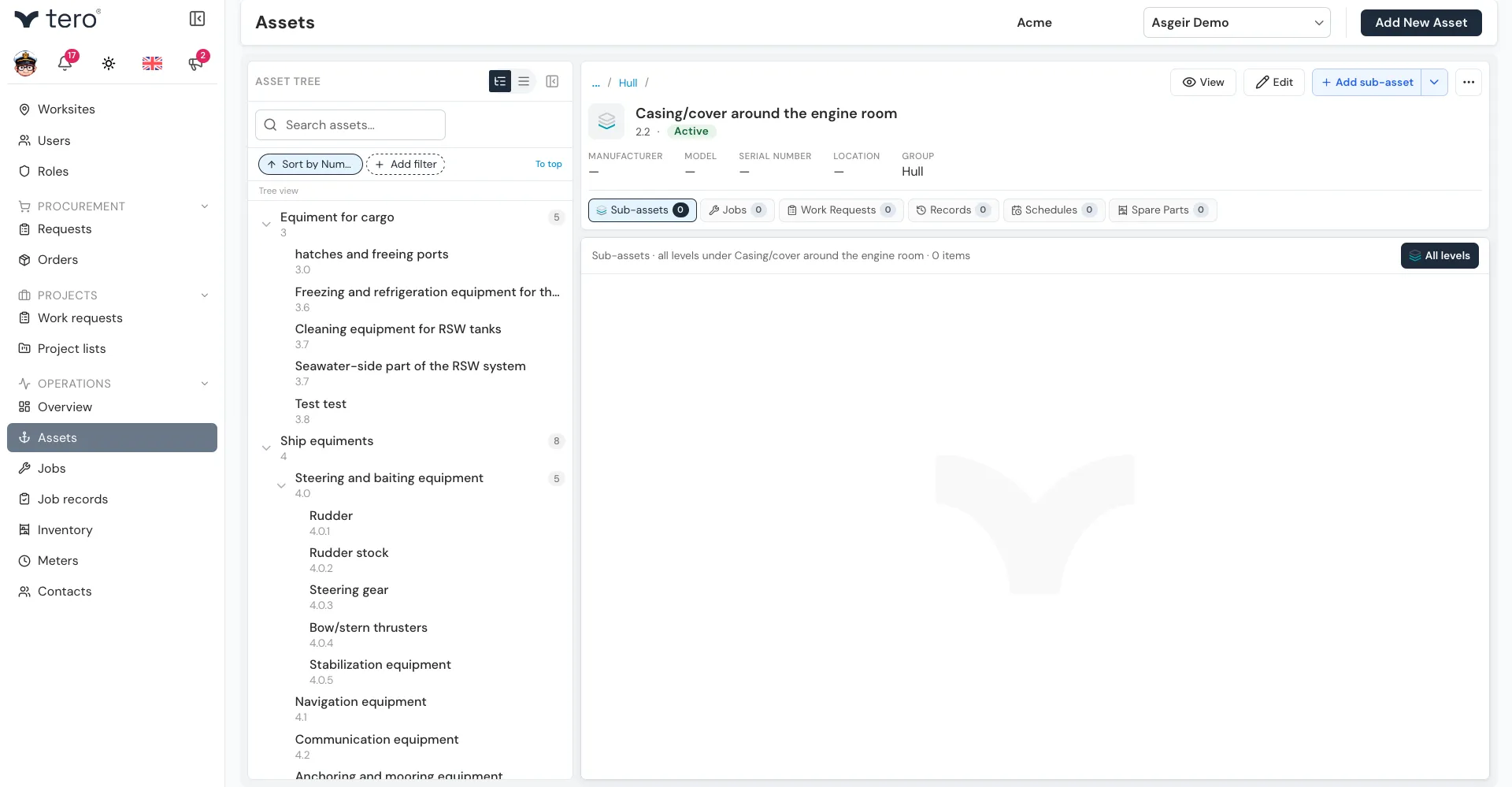
Useful when you want to drill from a vessel down to a specific sub-component, or to understand how things are organised on a new site. See Asset hierarchy explained.
The list view
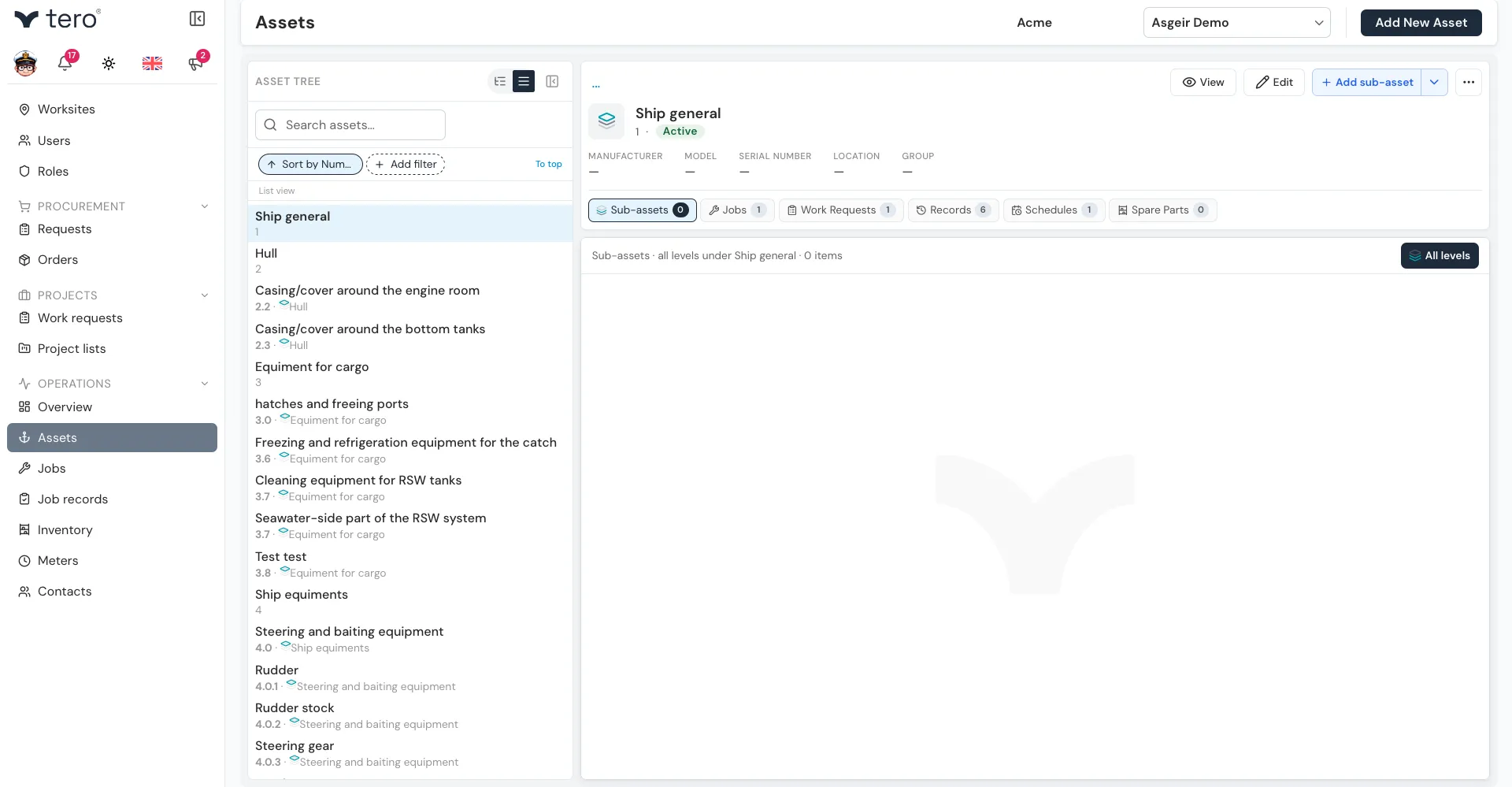
Switch between the two views with the pair of icon buttons at the top of the panel:
- Tree view — lines indented like a tree
- List view — four horizontal lines
The list view shows every asset in one flat list. Each row shows the asset’s name, its number, and the asset it sits under.
Sorting
Click the Sort by button under the search box to sort by Number or Name, in either direction, then click Apply.
Search
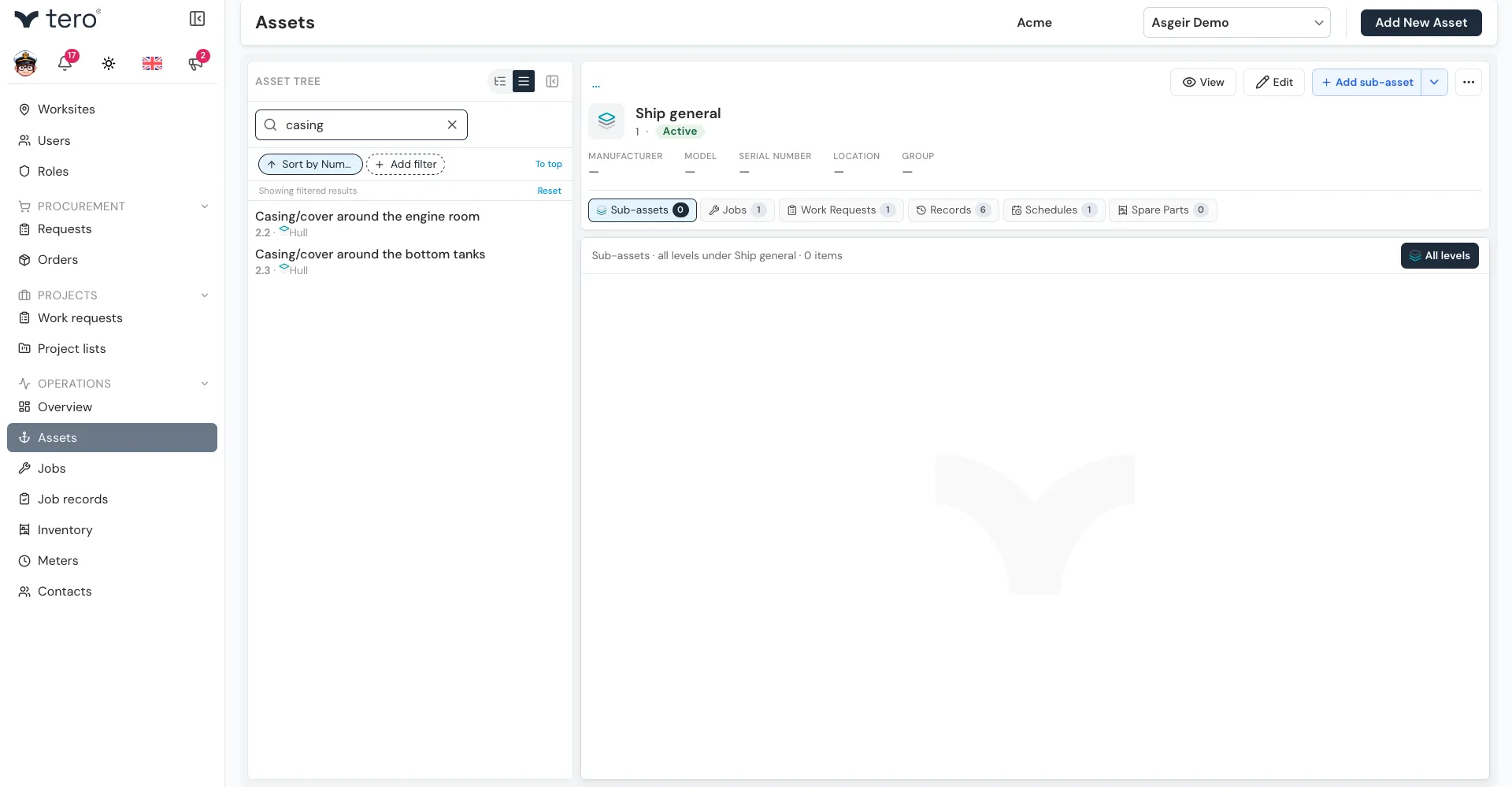
Type into the Search assets… box at the top of the panel. The panel switches to a flat list of matching assets, and a Showing filtered results bar appears. Click Reset in that bar to clear the search.
Hiding the panel
To give the asset more room, click the panel icon (a rectangle with a left-pointing arrow) at the top of the Asset Tree panel to collapse it. Click it again to bring the panel back.
Tero remembers your view, sort order, and the last asset you opened, so the page looks the same the next time you come back.