
Submitting a work request
If you find something broken or that needs attention but no job exists for it yet, submit a work request. A supervisor reviews requests and can add them to a project or convert them into jobs.
Finding the button
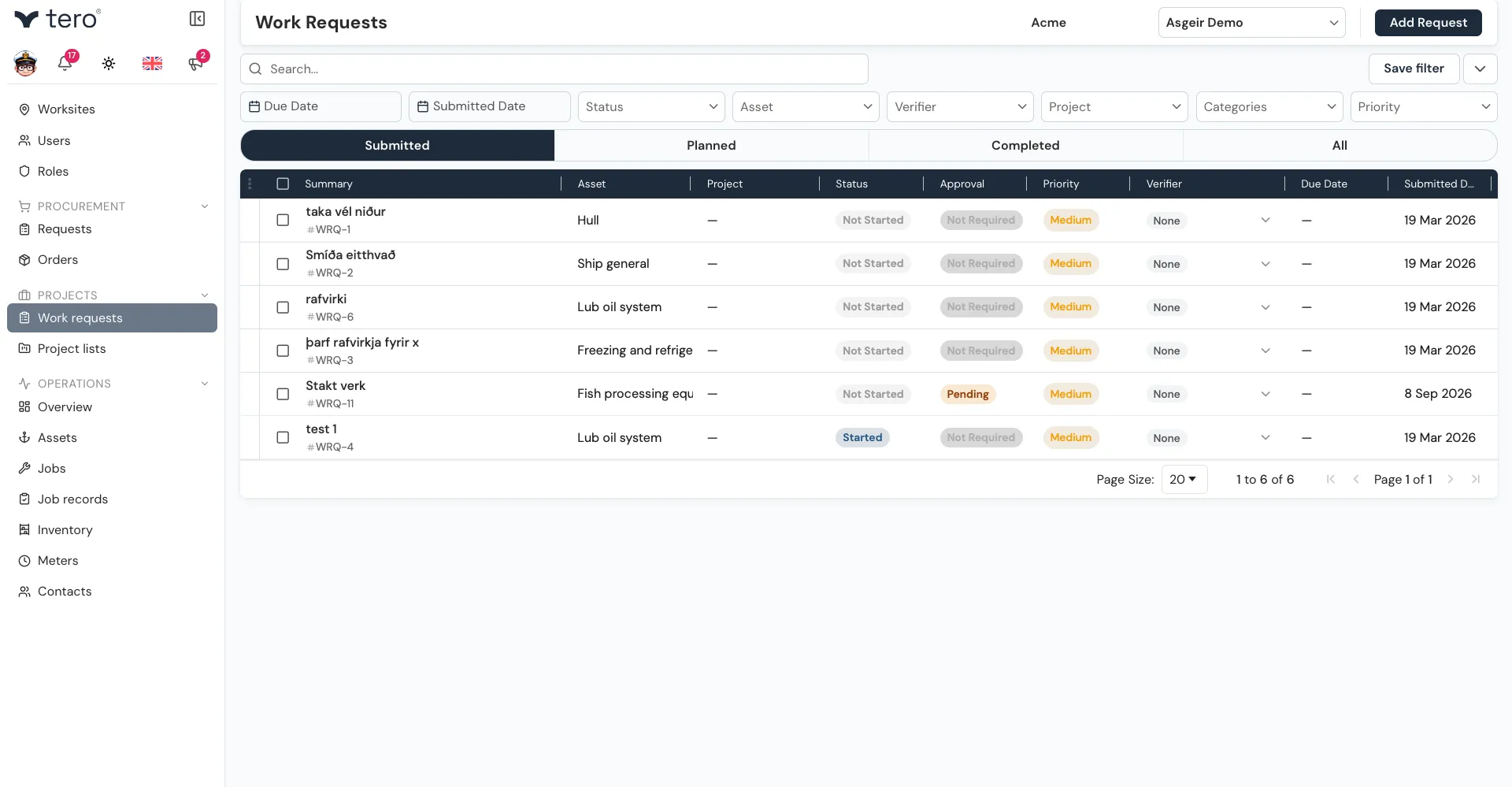
You can start a work request from several places:
- Overview — the New work request quick action
- Work requests page (under Projects in the menu) — the Add Request button
- An asset — on the asset’s Work Requests tab, click + Add work request. On any other tab, click the down arrow next to the add button and choose Add work request. The asset is filled in for you and can’t be changed.
- A project — click the three vertical dots (⋮) at the start of the project’s row and choose New Work Request, or open the project and click the plus-in-a-circle icon at the top of its side panel. The project is filled in for you.
Filling in the form
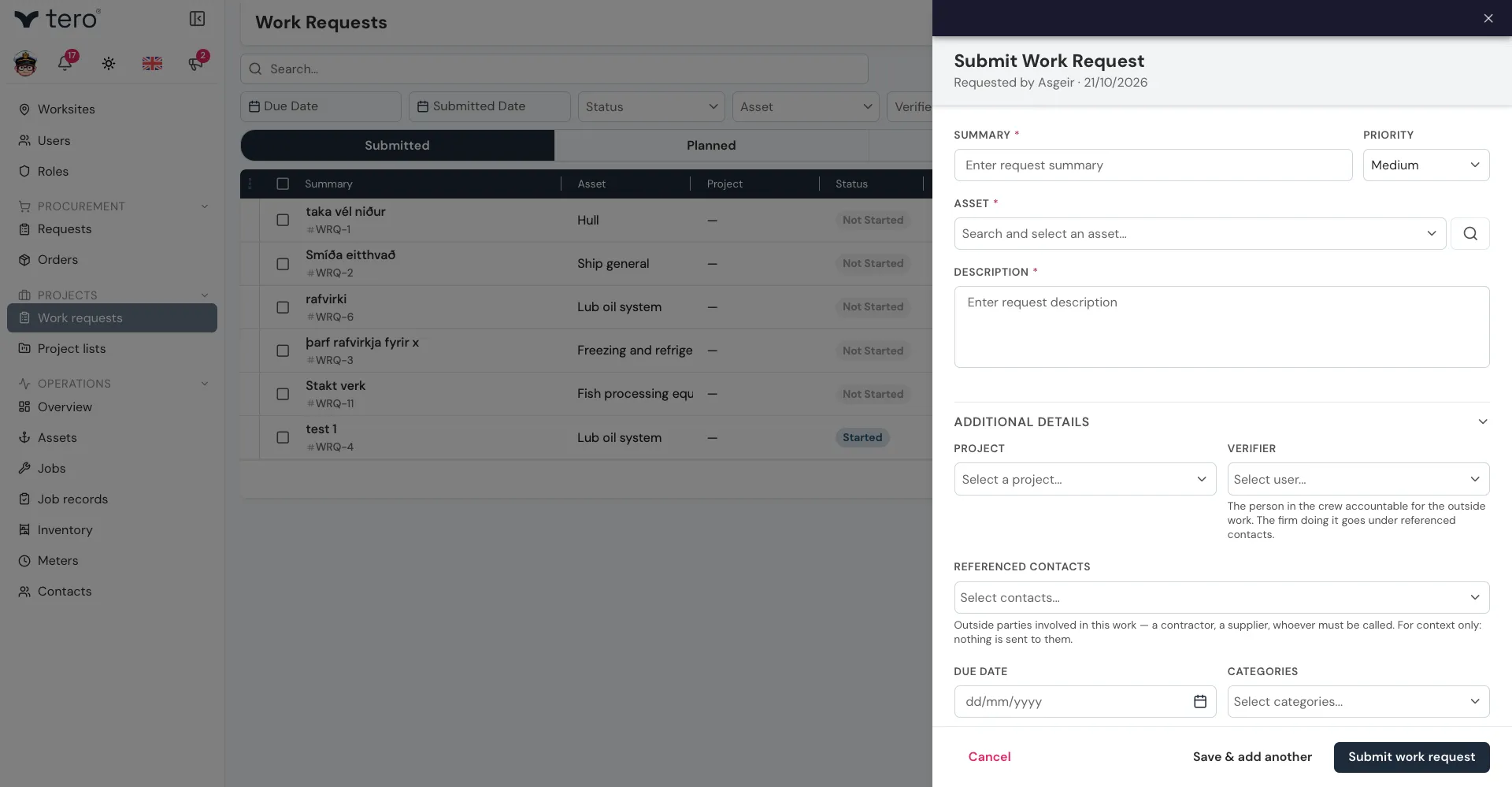
At the top of the form:
- Asset — which asset is affected (required)
- Summary — a short title for the issue (required)
- Priority — High, Medium, or Low
- Description — the full details (required)
The Additional Details section is collapsed by default. Expand it to set:
- Project — the project this request belongs to
- Verifier — the person in your crew accountable for the work
- Referenced contacts — outside parties involved, such as a contractor or supplier. This is for context only; nothing is sent to them.
- Due date
- Categories
- Needs approval on completion — tick this if the work should be reviewed once it’s done
- Additional notes — saved as a note on the request
Be specific: include where exactly the issue is, what you observed, and what (if anything) you already tried.
Click Submit work request to save. To raise several requests in a row, use Save & add another.
Adding photos
Photos can’t be added on the form itself. Once the request is saved, open it and go to the Attachments section. Click + to choose a file, or drag files onto the section. On a phone, the file picker usually lets you take a photo with the camera.
Photos help enormously — the supervisor often acts faster on a request with a clear picture.
Tracking your request
Your request appears on the Work requests page. The tabs at the top split the list:
| Tab | Shows |
|---|---|
| Submitted | Open requests not yet added to a project |
| Planned | Open requests that belong to a project |
| Completed | Finished requests |
| All | Everything |
Each request has a status:
| Status | Meaning |
|---|---|
| Pending | Submitted, work hasn’t started |
| Started | Being worked on |
| Paused | Work is on hold |
| Overdue | Past its due date |
| Completed | Done |
| Cancelled | Closed without action |
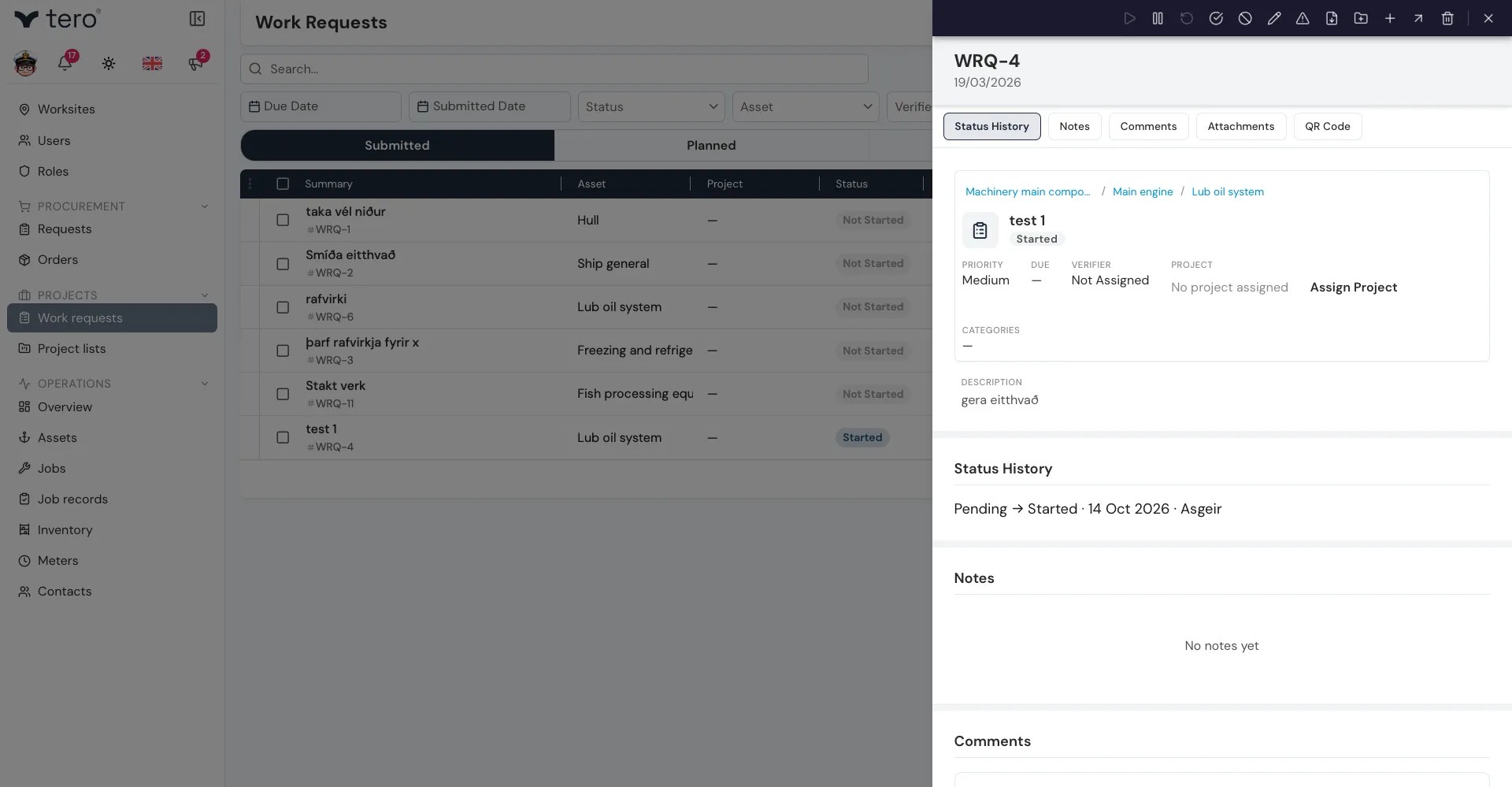
Open a request to see its status history, notes, comments, and attachments.