
Generating and printing QR codes
Every asset, job, job record, work request, request, order, project, and inventory item in Tero.Ops has its own QR code. Print it, stick it on the physical item, and field crews can scan to jump to the right record in seconds.
Where to find the QR code
Open the asset and click View (eye icon) on the asset card. In the side panel, click QR Code in the row of section links at the top. Other records have the same QR Code section in their side panel.
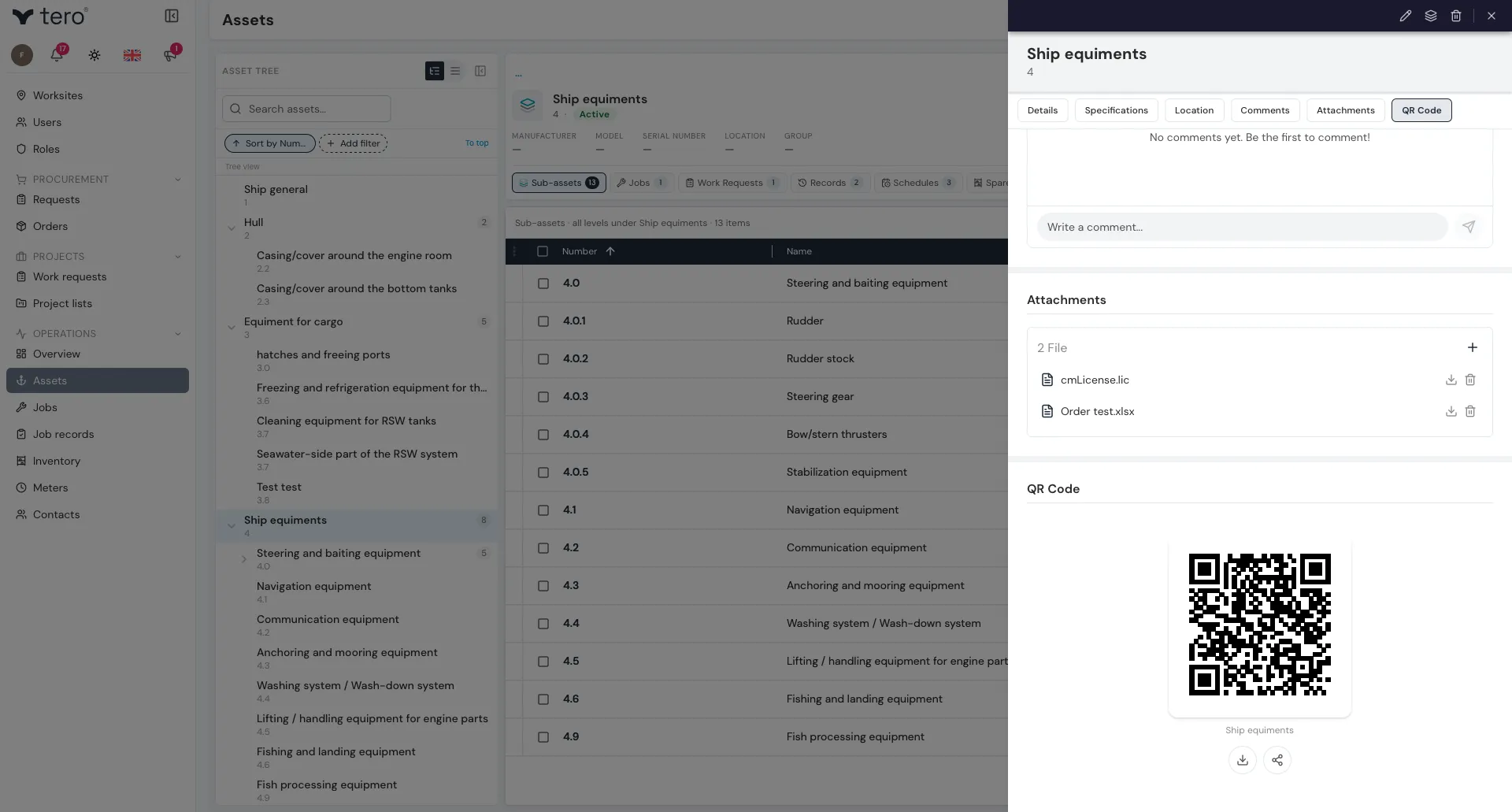
You’ll see the code with two icon buttons under it:
- Download (a down arrow over a tray) — saves the QR code as a 1024 × 1024 pixel PNG image with a white border
- Share (three dots joined by lines) — shares the link and image through your device’s share sheet. On a desktop browser it copies the link to the clipboard instead, and confirms with “Link copied to clipboard”
Printing a code
Download the image, then place it in whatever you print from — a label template, a document, or your label printer’s own software. Tero produces the code; it does not lay out a print sheet for you.
Print sizes
For sticking on equipment you’ll usually want smaller labels:
| Size | Use |
|---|---|
| 50 × 50 mm | Small components — pumps, valves, sensors |
| 100 × 100 mm | Mid-size — engines, panels |
| A5 / A4 | Vessel-level or operator stations |
Print onto durable label stock (vinyl or polyester) for marine/industrial environments — standard paper won’t survive.
Best places to put QR stickers
- At eye level when the operator is in working position
- Away from heat sources and moving parts
- Where lighting is good — under poor light, even a clean QR is slow to scan
- Wipe-able surface — grease and salt destroy unprotected stickers fast