
Creating a one-time job
Use a one-time job for work that won’t repeat — a custom modification, a one-off repair, a special inspection.
Opening the new-job form
- From the Jobs page — open Operations → Jobs and click Create one-off Job.
- From an asset — open the asset and use Add job: on the Jobs tab it’s the main add button; on any other tab, click the down arrow next to the add button and choose Add job. The asset is filled in for you and can’t be changed.
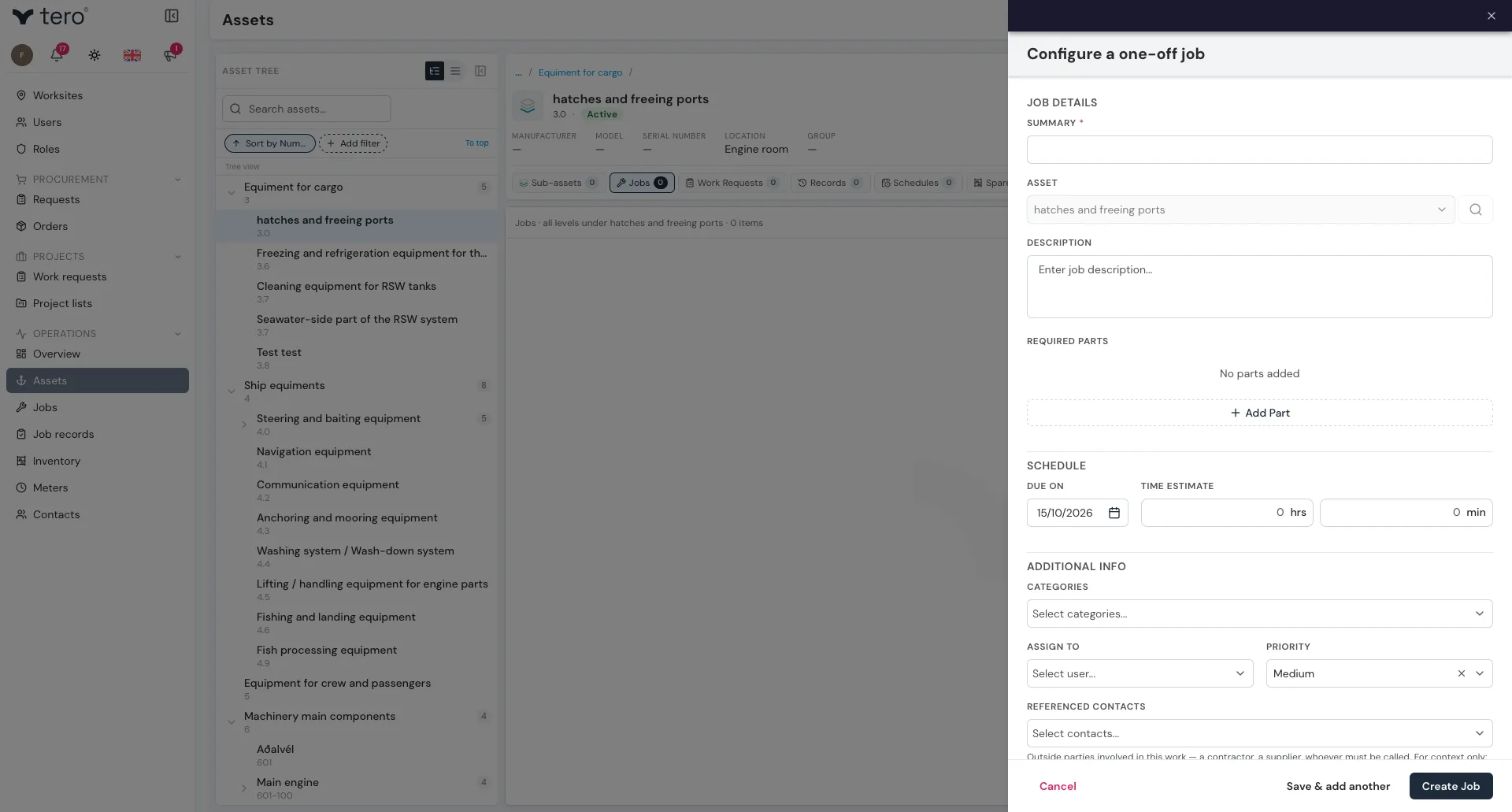
The form is divided into sections:
- Job details
- Schedule
- Additional info
Job details
- Summary — short title (“Service main engine — 500-hour”) (required)
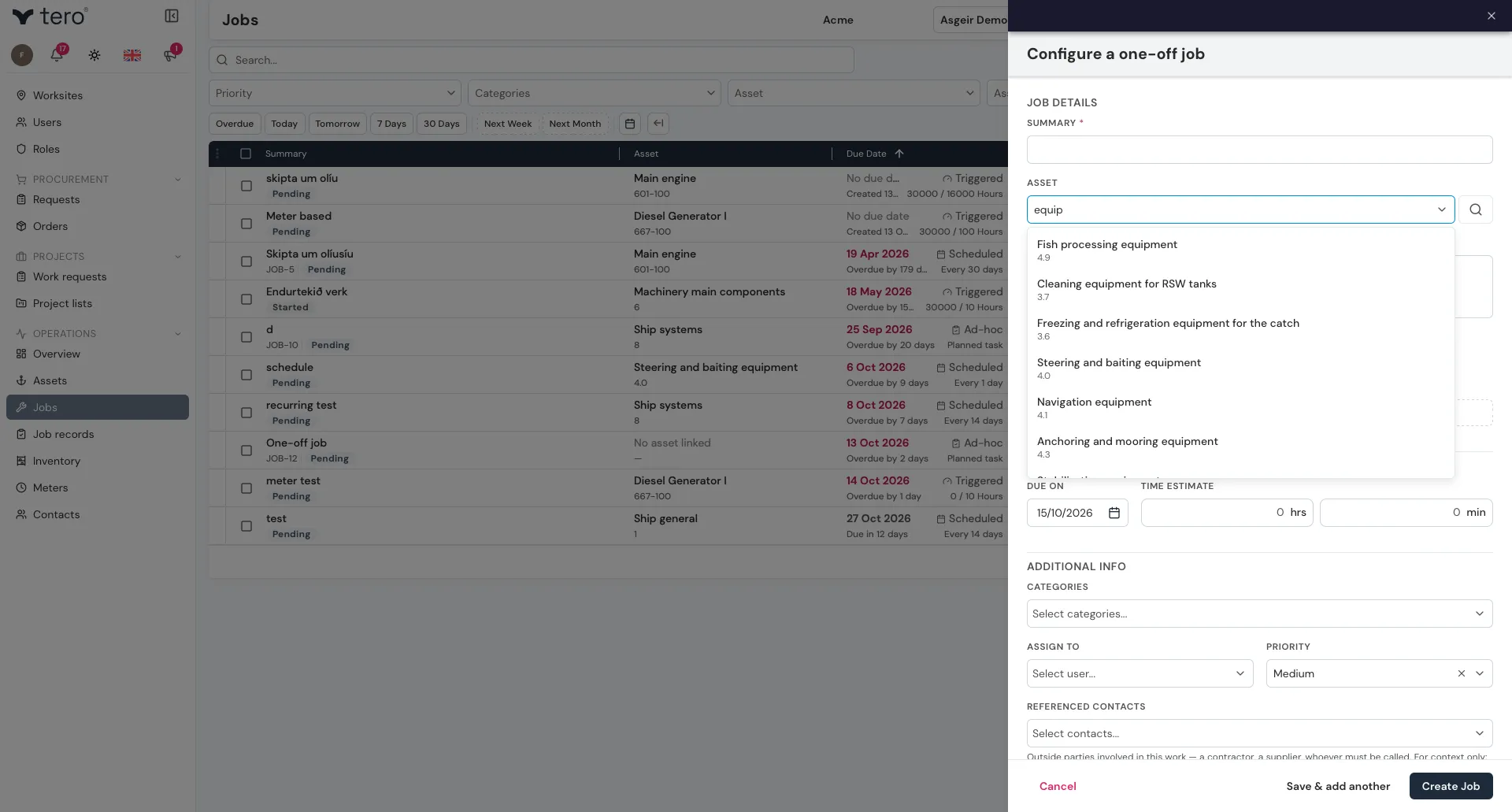
- Asset — the asset the work is on
- Description — full context, what to do, what to look for
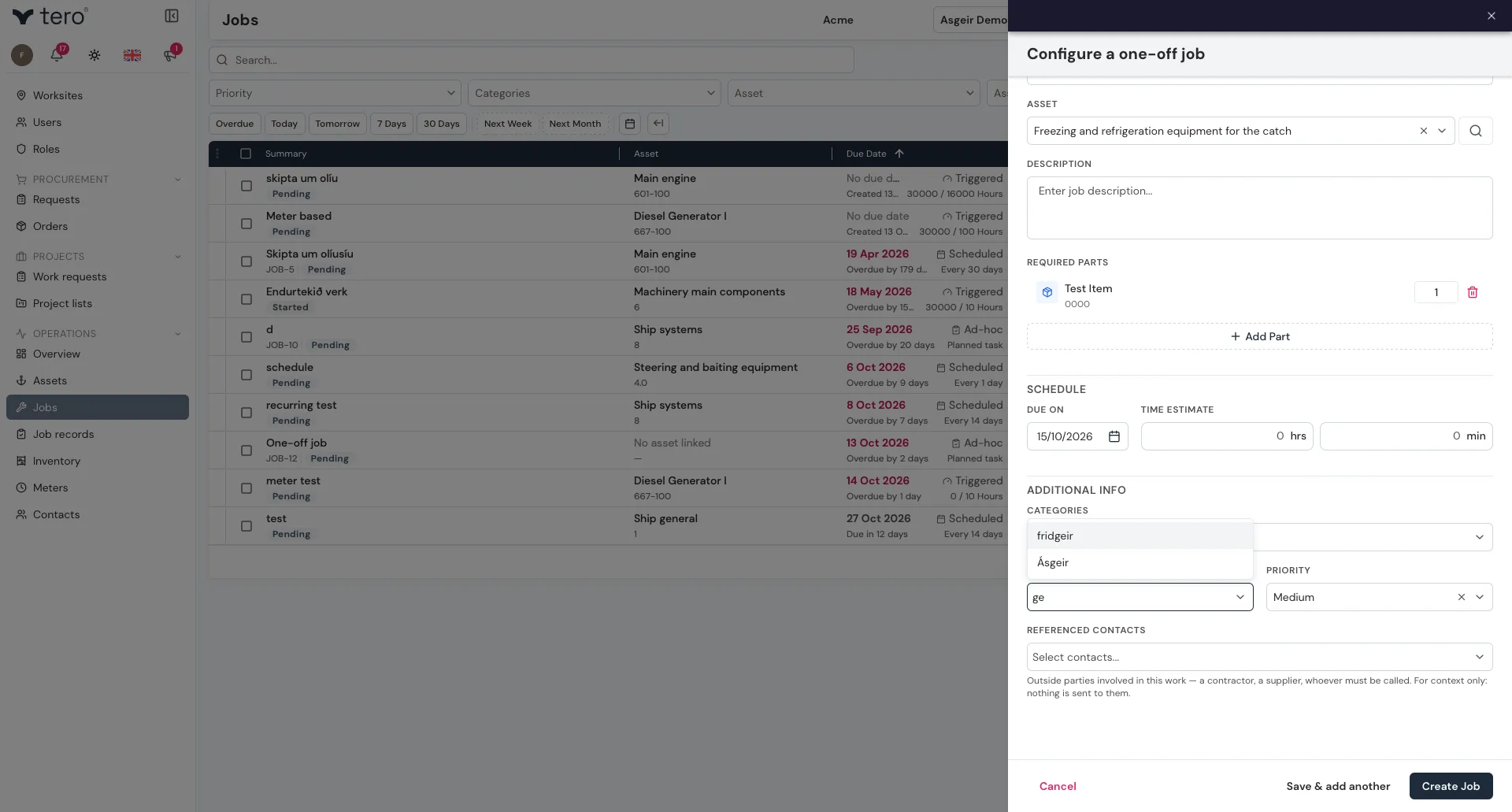
- Required parts — parts the technician is likely to need (optional). Click Add Part to pick them from inventory and set a quantity for each.
Click the Asset field and type to search by name or number.
Schedule
A one-time job has no recurrence to set. Its Schedule section holds:
- Due on — the date the job is due
- Time estimate — how long the work should take
If the work should repeat, create a recurring schedule instead — see Setting up preventive maintenance.
Additional info
- Categories — optional tags (e.g. “Engine room”, “Safety”)
- Assign to — the people responsible; you can pick more than one
- Priority — High / Medium / Low
- Referenced contacts — outside parties involved, such as a contractor or supplier. For context only; nothing is sent to them.
Saving
Click Create Job, or Save & add another to create several in a row. The job appears in Operations → Jobs and on the asset’s Jobs tab. Once it’s completed, it moves to Job records — see Jobs vs job records.