
Logging in
Tero.Ops uses passwordless login. You enter your email, you receive a 6-digit verification code, you type it in, and you’re in. There’s no password to remember and no password to leak.
Enter your email
Open Tero.Ops in your browser. You’ll see the login screen with a single email field.

Type the email your administrator invited you with and click Login.
Enter the verification code
The screen changes to Enter your verification code and says Code requested for your.email@company.com.
Depending on how your account is set up, the code arrives by email, by SMS, or in your authenticator app. If an SMS can’t be delivered, the code is sent to your email instead and the screen tells you so.
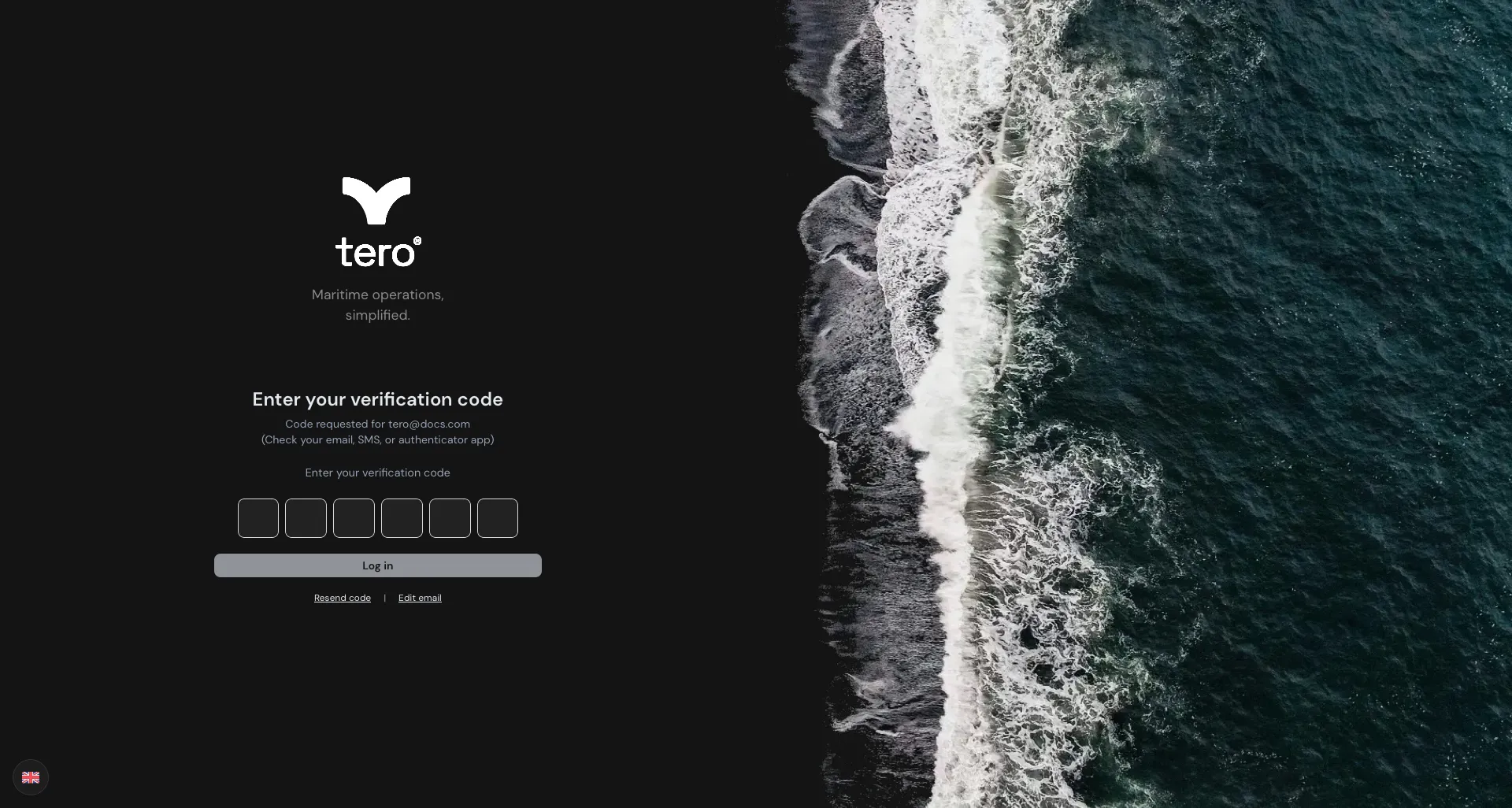
Type the 6-digit code and click Log in.
You have two attempts. After a second wrong code, you’re taken back to the email screen to start again.
If the code doesn’t arrive:
- Check your spam folder
- Click Resend code to request a new one (not shown when you use an authenticator app)
- Click Edit email if you typed the wrong address
What if the code expired?
You’ll see “This code has expired. Please request a new one.” and return to the email screen. Click Login to get a new code.
No Company Membership
If you see No Company Membership, your account isn’t part of any company yet. Ask your administrator to give you access. Once they have, click Log out on that screen and log in again.
After login
You land on the Overview page. The sidebar shows the sections you have permission to see — Procurement, Projects and Operations. Company admins also see Worksites, Users and Roles at the top.
If you belong to more than one worksite, switch between them with the worksite dropdown in the top-right corner of each page. See The main interface for the full tour.