
The main interface
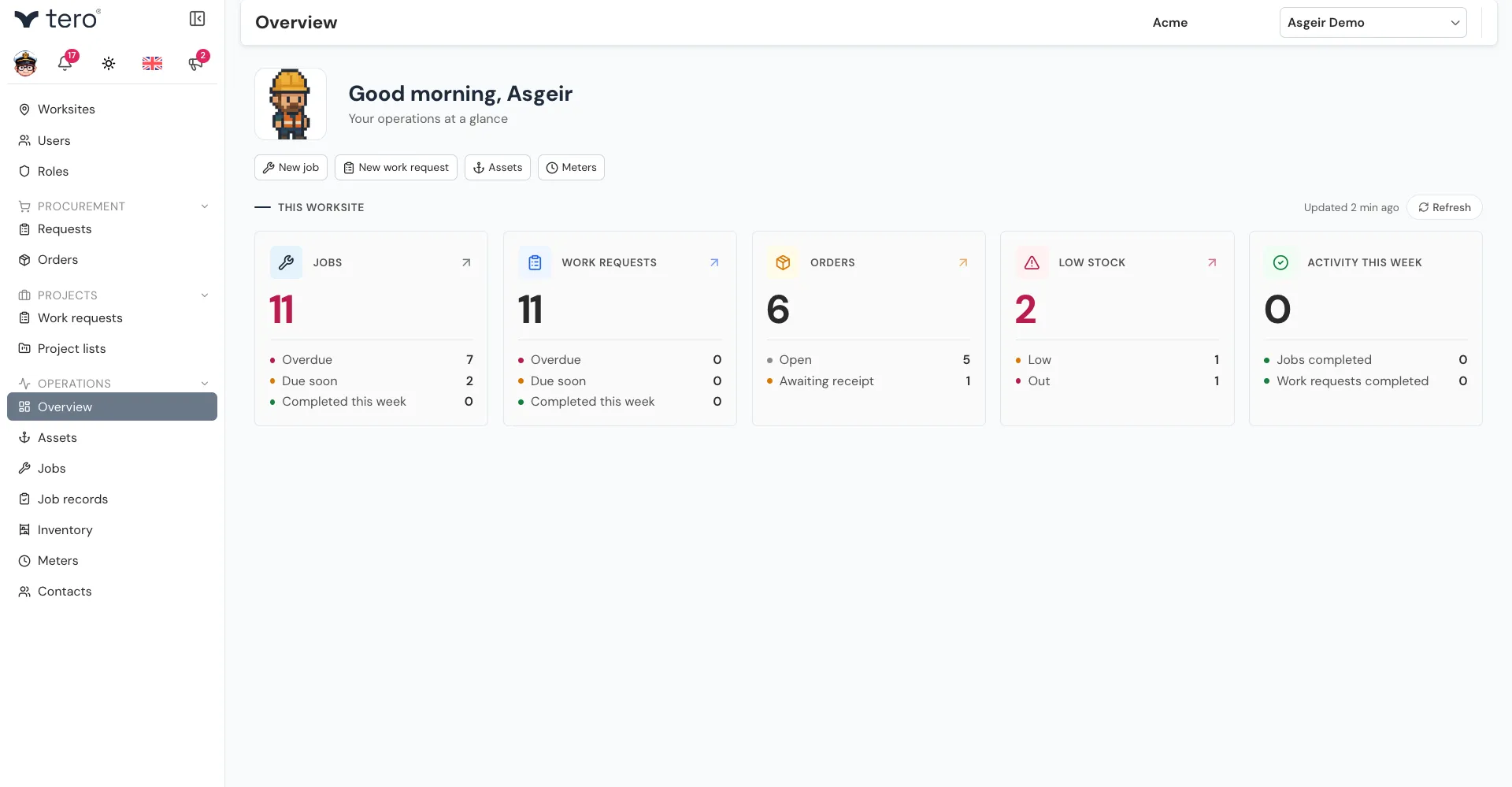
After logging in, Tero.Ops has two main regions: the sidebar on the left and the page on the right. Each page has its own header at the top, with the page title and the worksite switcher. This page walks through what each one is for.
The left sidebar
The sidebar groups pages into sections:
| Section | Pages |
|---|---|
| (company admins only, shown first and without a heading) | Worksites, Users, Roles |
| Procurement | Requests, Orders |
| Projects | Work requests, Project lists |
| Operations | Overview, Assets, Jobs, Job records, Inventory, Meters, Contacts, AI Assistant* |
* AI Assistant only appears if it’s turned on for your company.
Note that Jobs and Job records sit under Operations, not under a separate maintenance section, and Inventory sits under Operations while Procurement holds Requests and Orders.
Pages you don’t have permission for are hidden. Click a section heading to fold or unfold its pages.
To collapse the whole sidebar into a narrow strip of icons, click the panel icon (a rectangle with a left-pointing arrow) next to the Tero logo. Click it again to expand the sidebar.
The worksite switcher
If your account belongs to more than one worksite, switch between them with the worksite dropdown in the top-right corner of the page header. Everything you see — assets, jobs, inventory, projects — is scoped to the selected worksite. If you only have one worksite, its name is shown there instead of a dropdown.
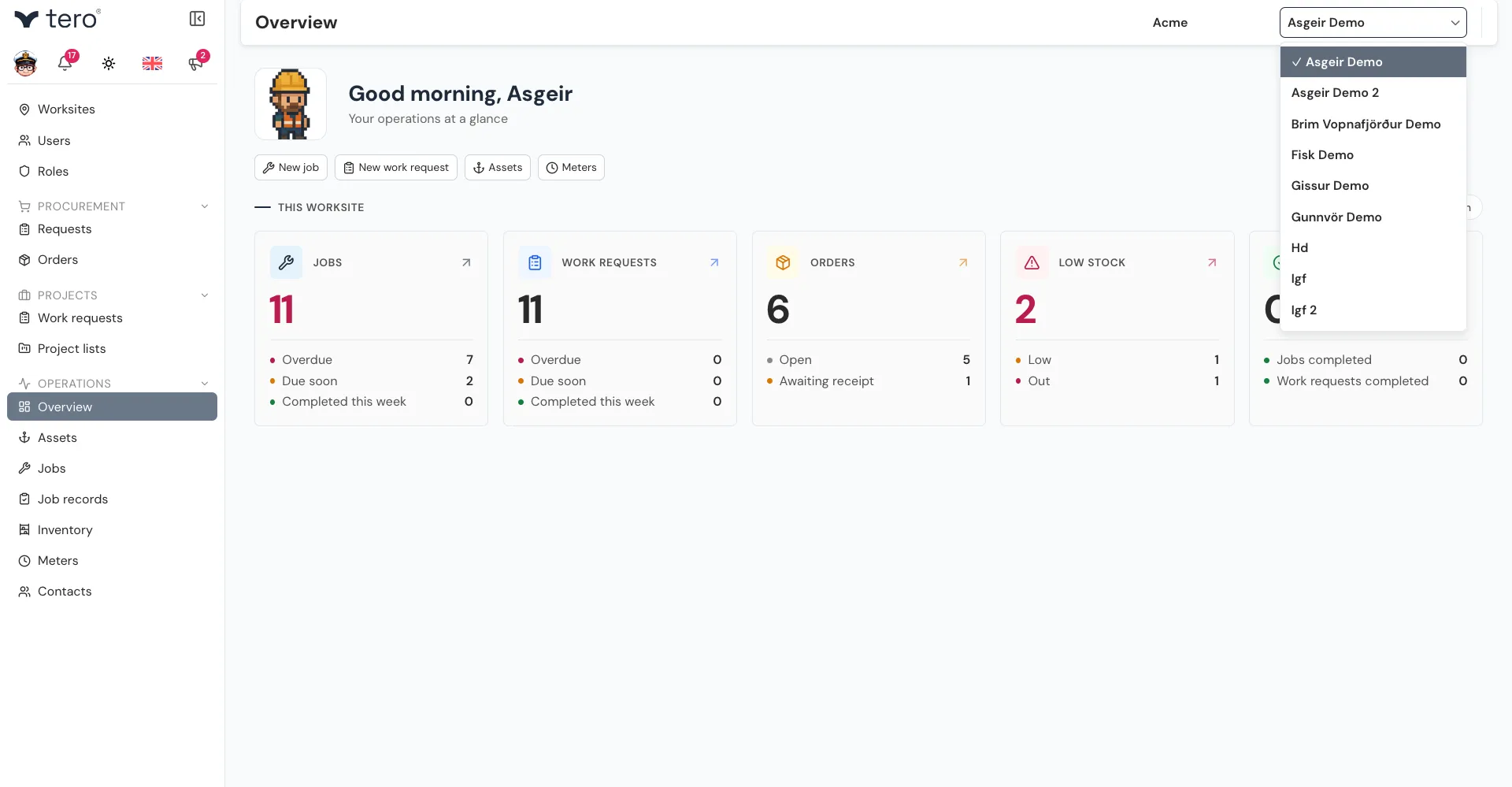
Tero.Ops remembers the last worksite you used and opens it the next time you log in.
The toolbar
A row of icons sits at the top of the sidebar, under the Tero logo:
- Your avatar (the circle with your initial) — opens your profile settings
- Notifications (bell icon) — opens the notifications panel
- Theme (sun, moon, or monitor icon) — each click switches between light, dark, and your system’s setting
- Language (flag icon) — choose English, Español, Íslenska, or Français
- What’s New (megaphone icon) — recent product updates
When the sidebar is collapsed, all of these are folded into a single three horizontal dots (⋯) button.
Notifications bell
A red badge on the bell shows how many unread notifications you have. Click it for a panel of recent events.
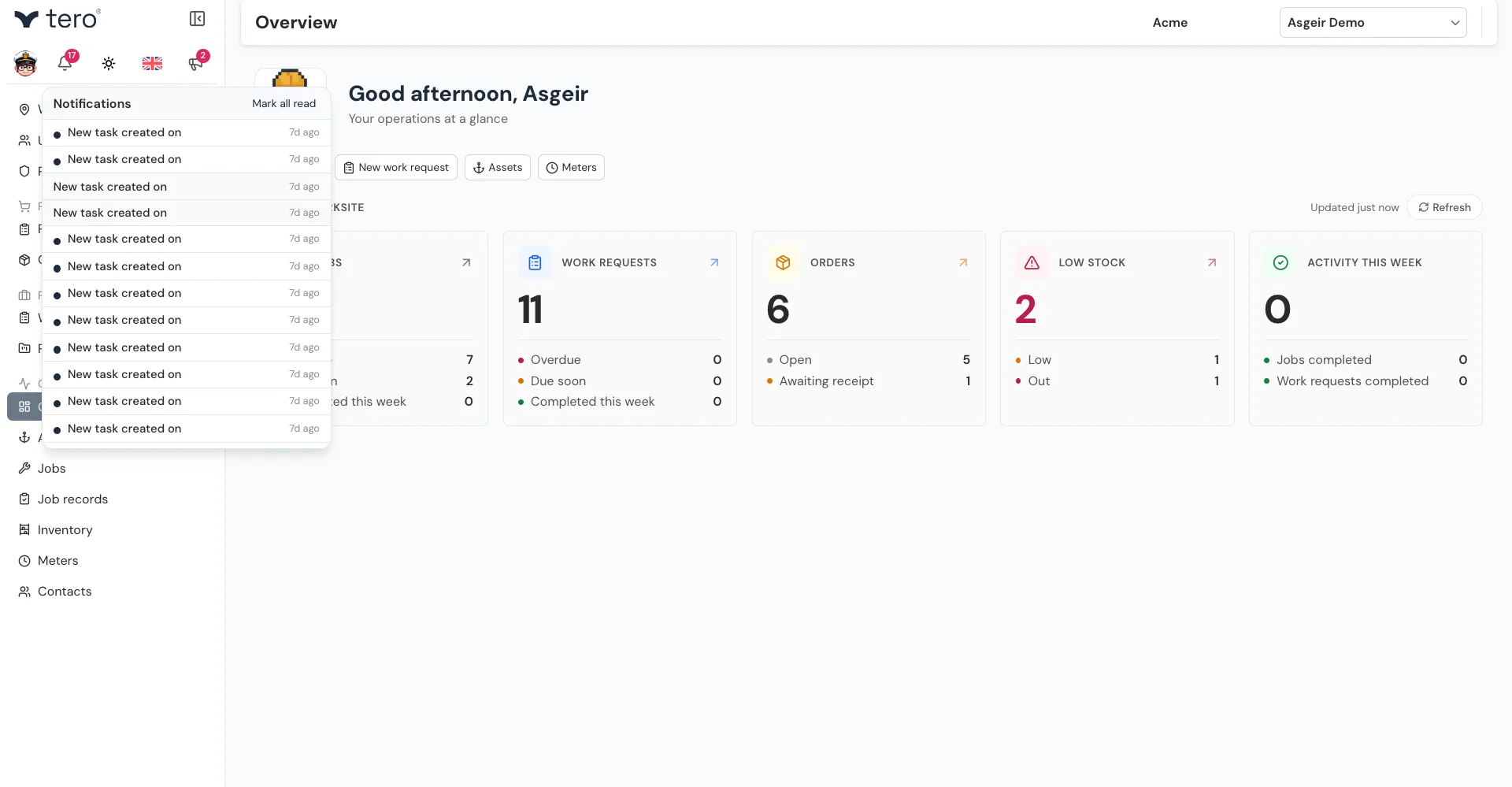
See Notifications for what triggers each one and how to configure which ones you receive.