
Receiving stock
When stock arrives, you record receipt against the purchase order. Tero handles both full and partial deliveries.
Receiving a delivery
Find the order in Procurement → Orders and click the package-with-a-check-mark icon (Receive Goods) on its row, or at the top of the order’s side panel. It’s available once the order has been sent to the supplier.
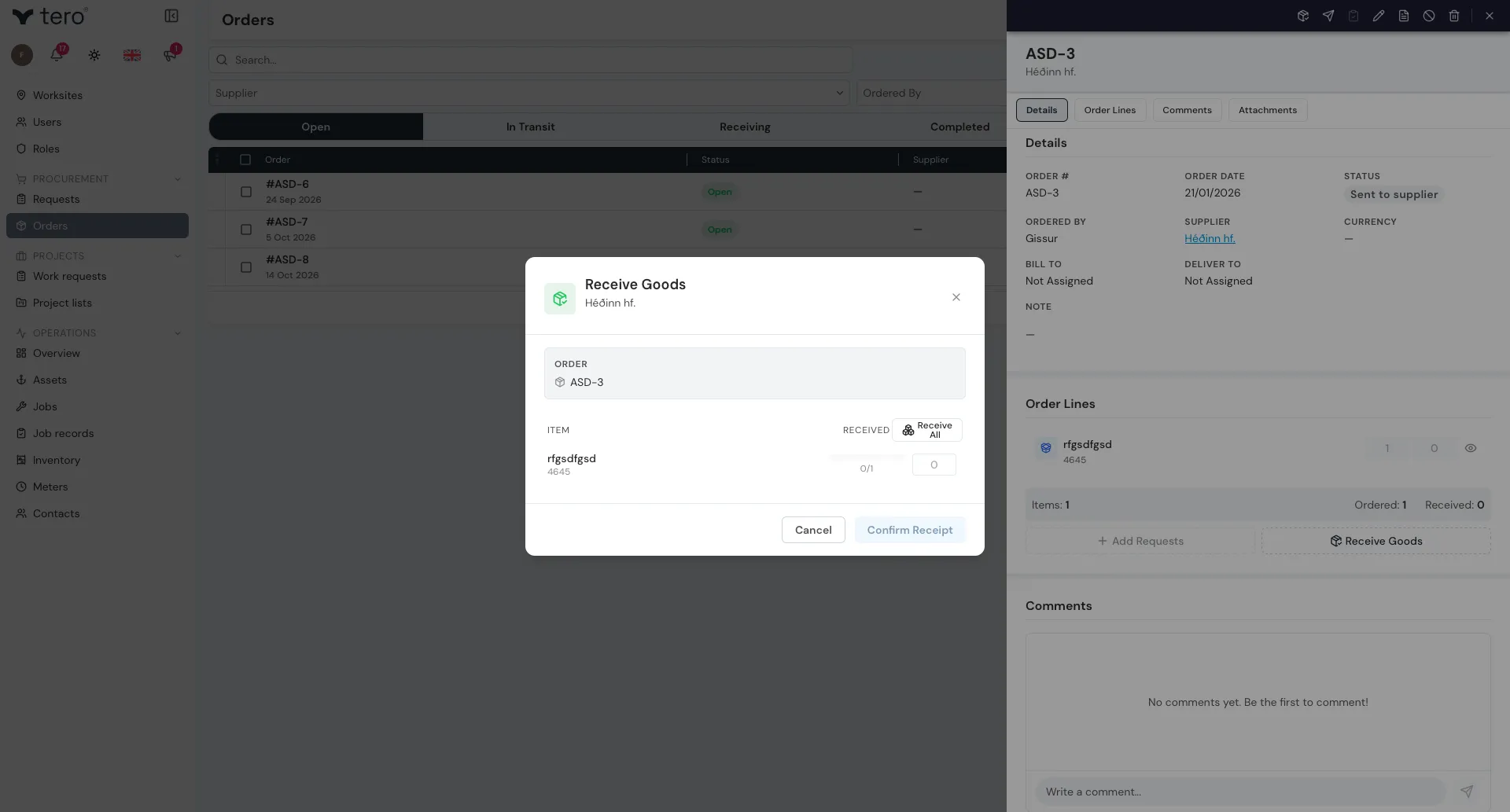
Each line on the order is listed with how much has been received so far out of how much was ordered (for example 2/5). Enter how many arrived in this delivery for each line, or click Receive All to fill in everything that’s still outstanding.
Click Confirm Receipt. Tero records the received quantities and takes them off each item’s On order. When every line has been received in full, the order status changes to Fully received.
Partial deliveries
Orders don’t always arrive in one go — half the parts in one delivery, the rest two weeks later.
When you receive a partial delivery, only enter quantities for the items that arrived. Leave the rest at 0.
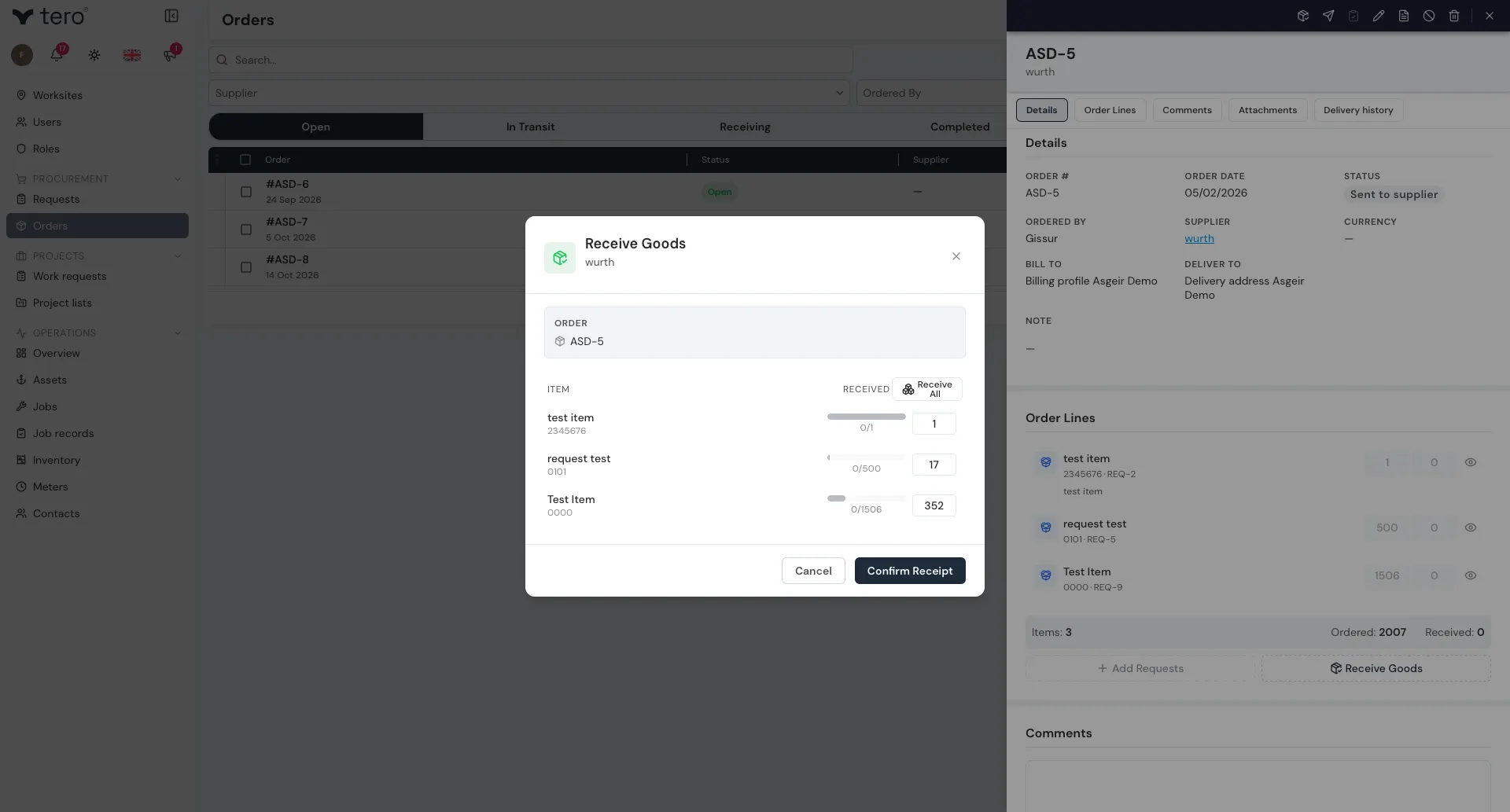
The order status changes to Partially received. The remaining items stay on the order, waiting for the next delivery.
You can receive against the order as many times as needed.