
Setting up preventive maintenance
Preventive maintenance (PM) is work that should happen on a schedule — every 500 engine hours, every 90 days, or “whichever comes first.” Tero supports both triggers separately or combined.
Creating a recurring job
Open the new-schedule form from one of:
- The Jobs page — open Operations → Jobs and click Schedule Job.
- An asset — open the asset and use Add schedule: on the Schedules tab it’s the main add button; on any other tab, click the down arrow next to the add button and choose Add schedule.
- An existing one-time job — open the job and click the calendar-with-a-plus icon (Convert to Scheduled) at the top of its side panel.
The form has the same Job details and Additional info sections as a one-time job (see Creating a one-time job). The difference is the Schedule section, where you choose the Recurrence trigger.
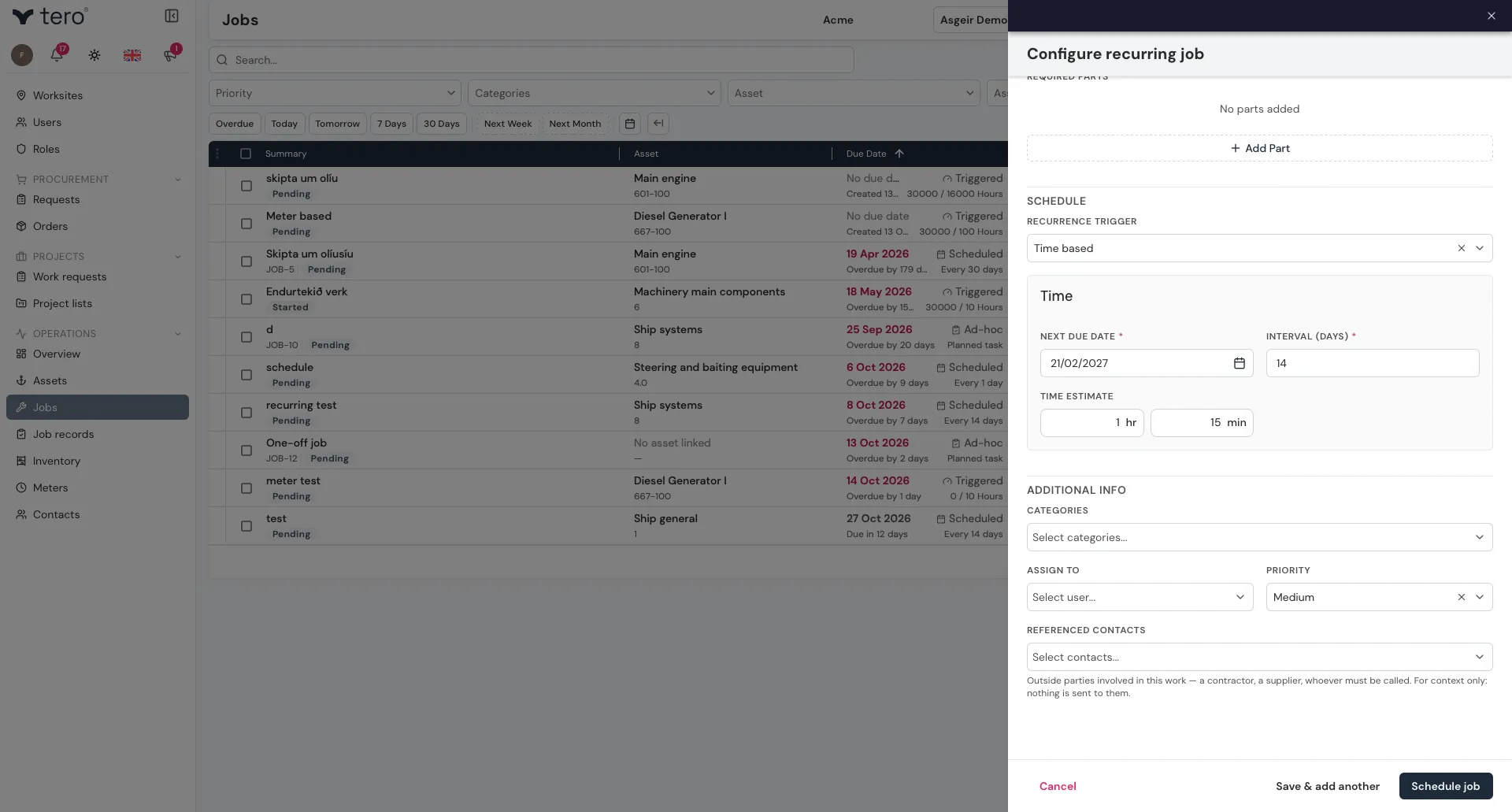
Time-based recurrence
Set Recurrence trigger to Time based, then fill in:
- Next due date — when the first job is due
- Interval (days) — how many days between occurrences (e.g. 90)
Meter-based recurrence
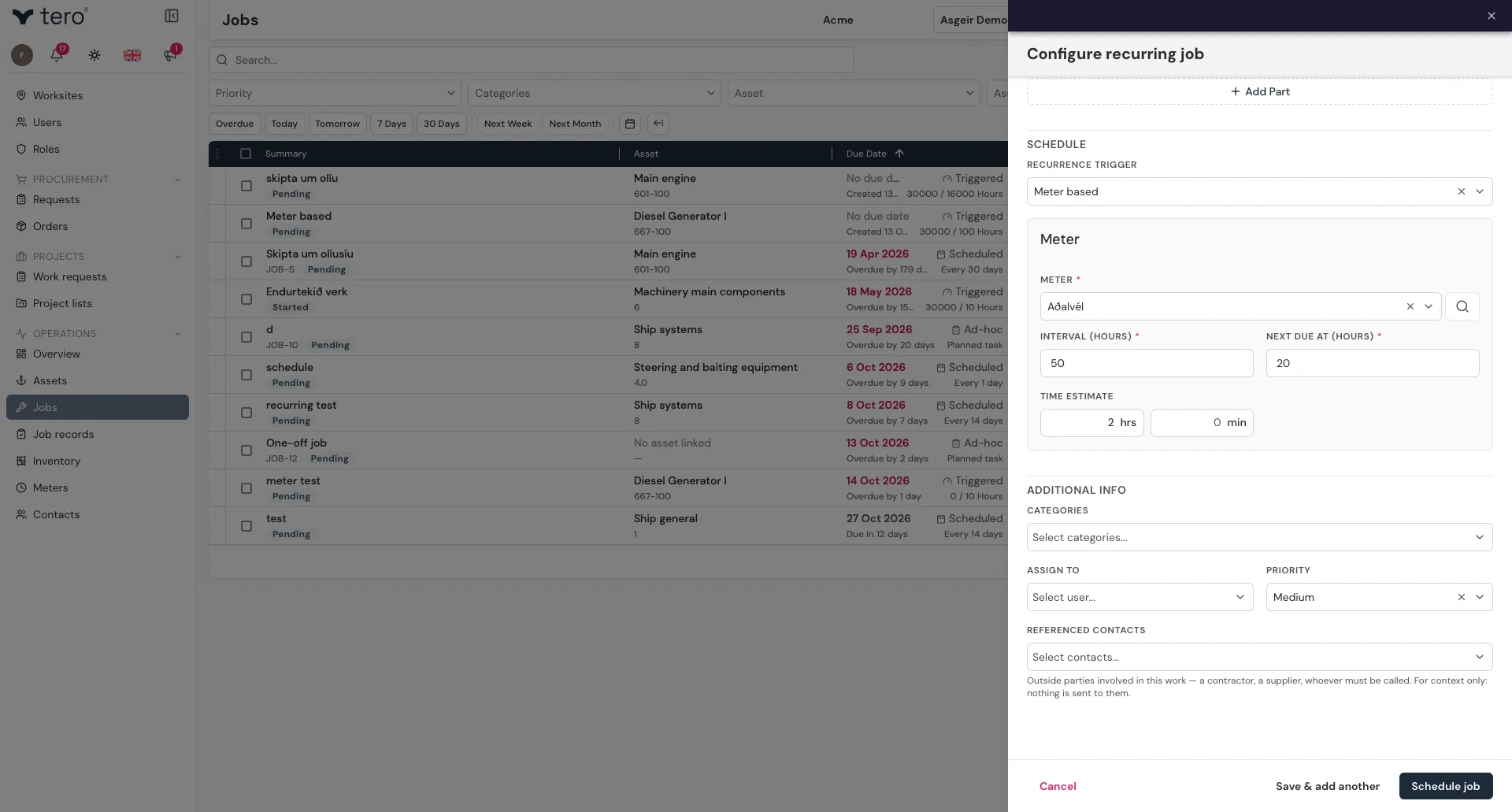
Set Recurrence trigger to Meter based, then fill in:
- Meter — the meter to follow
- Interval — how many of the meter’s units between occurrences (e.g. every 500 engine hours)
- Next due at — the meter reading at which the first job is due
See Logging meter readings for keeping the meter up to date.
Time and meter (whichever comes first)
Set Recurrence trigger to Time and Meter. The form shows both the Time and the Meter fields; fill in both. The job is due when either one is reached, whichever comes first.
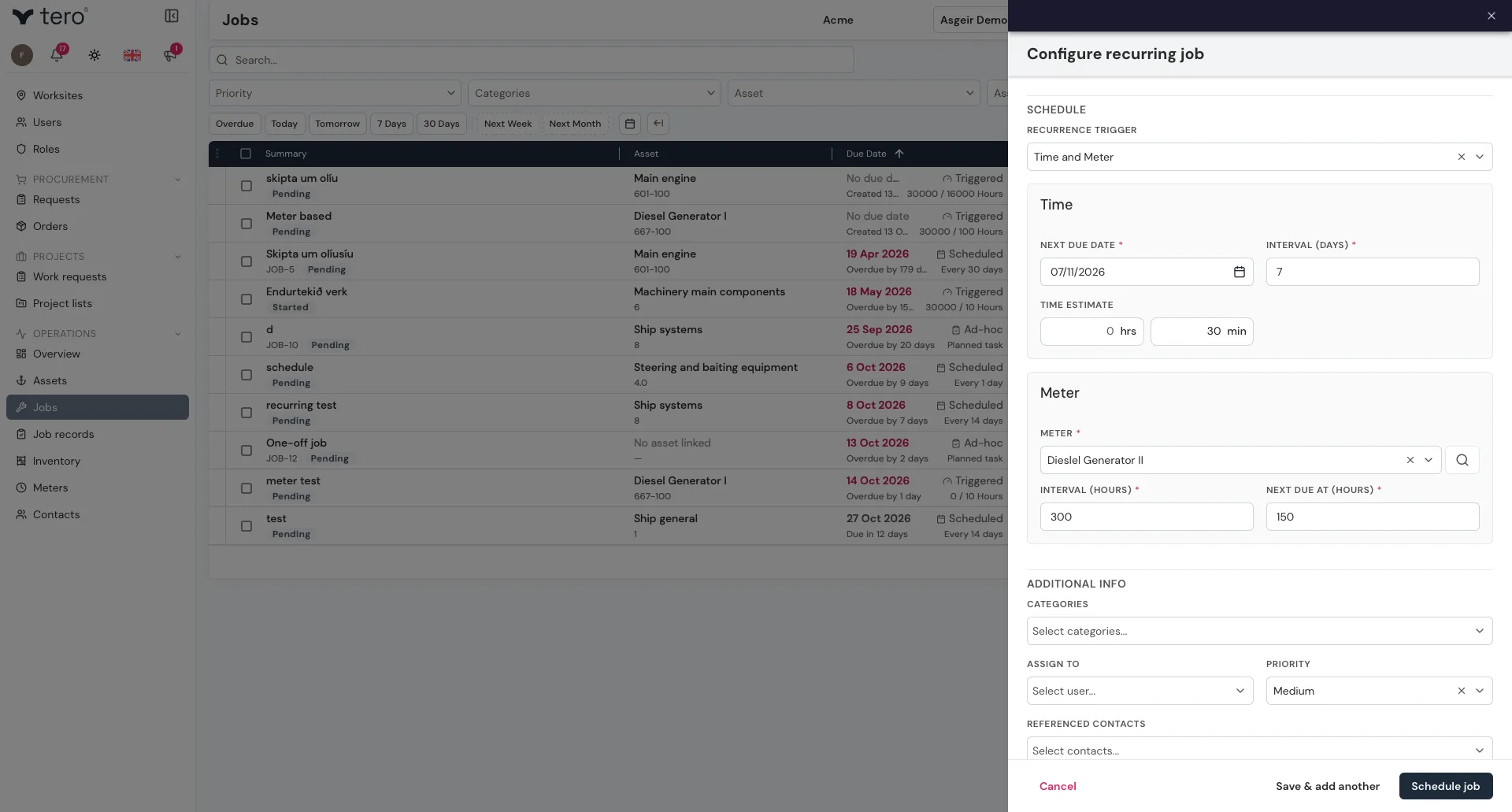
This is the most common pattern for engine maintenance: “every 500 hours OR every 6 months, whichever is sooner.”
Saving
Click Schedule job. The schedule appears on the asset’s Schedules tab, and under View schedules on the Jobs page.
What happens when a recurring job completes
The completion record is saved with parts used, time and notes, and the job’s status becomes Completed. The record stays as the history of what was done.
The schedule itself lives on the template behind the job, not on the job you just finished. To stop it producing more work, or to change what it produces, go to the template — see Recurring jobs and templates.