
Creating a project
A project bundles related work — a drydock, an overhaul, an equipment upgrade — so it can be tracked as a single piece of operations. Each project has its own timeline and a list of work requests rolled into it.
Opening the new-project form
In the sidebar, open Projects → Project lists and click + New Project.
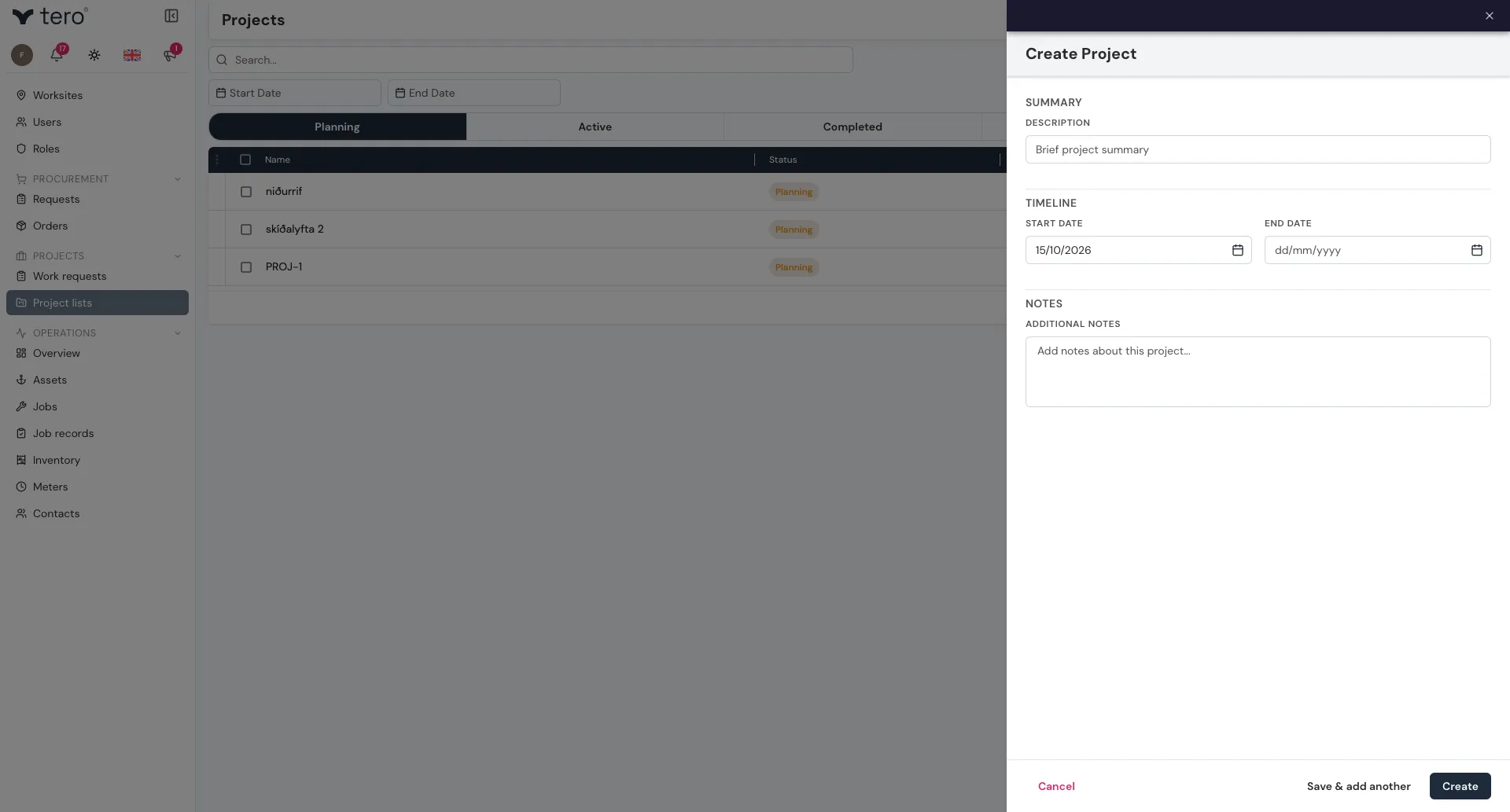
Summary
- Description — what the project is for and why
Timeline
- Start Date — when work begins
- End Date — when the project is due to close
Notes
- Additional Notes — anything else worth recording. It’s saved as a comment on the project.
Saving
Click Create, or Save & add another to create several in a row. The project lands in the project list with the status Planning.
Adding work requests
The reason to use projects (rather than just a list of jobs) is to bundle work requests. Open the project and, in its work requests section, click Link Work Request. Tick the requests you want and click Add Selected.
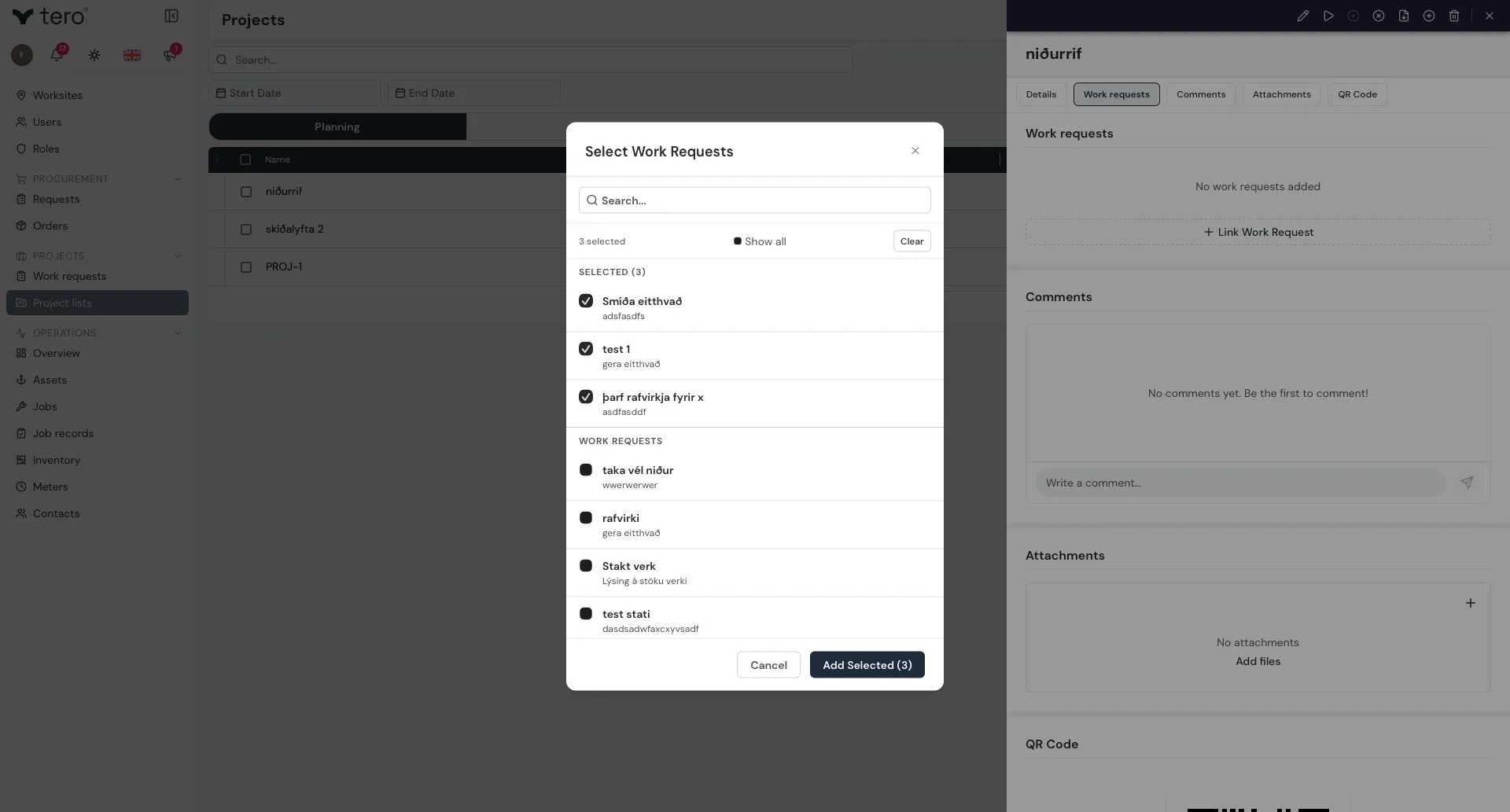
To create a new request that’s already part of the project, click the three vertical dots (⋮) at the start of the project’s row and choose New Work Request, or click the plus-in-a-circle icon at the top of the project’s side panel. See Submitting a work request.
Each work request inside the project is tracked separately. The project list shows how many of them are completed.
See Project workflow for moving the project through its statuses.