
Using QR codes
Tero generates a QR code for a record. The code holds that record’s link, so scanning the sticker opens the record.
Tero does not include a scanner. You scan the sticker with whatever your phone or tablet already uses to read QR codes — on most devices that is the normal camera app. Tero’s part is producing the code and opening the record once the link is followed.
Where to find a record’s QR code
Open the record and click QR Code in the row of section links at the top of its panel to jump to the code. It is available on:
- Requests
- Orders
- Work requests
- Project lists
- Assets
- Jobs and job records
- Inventory items
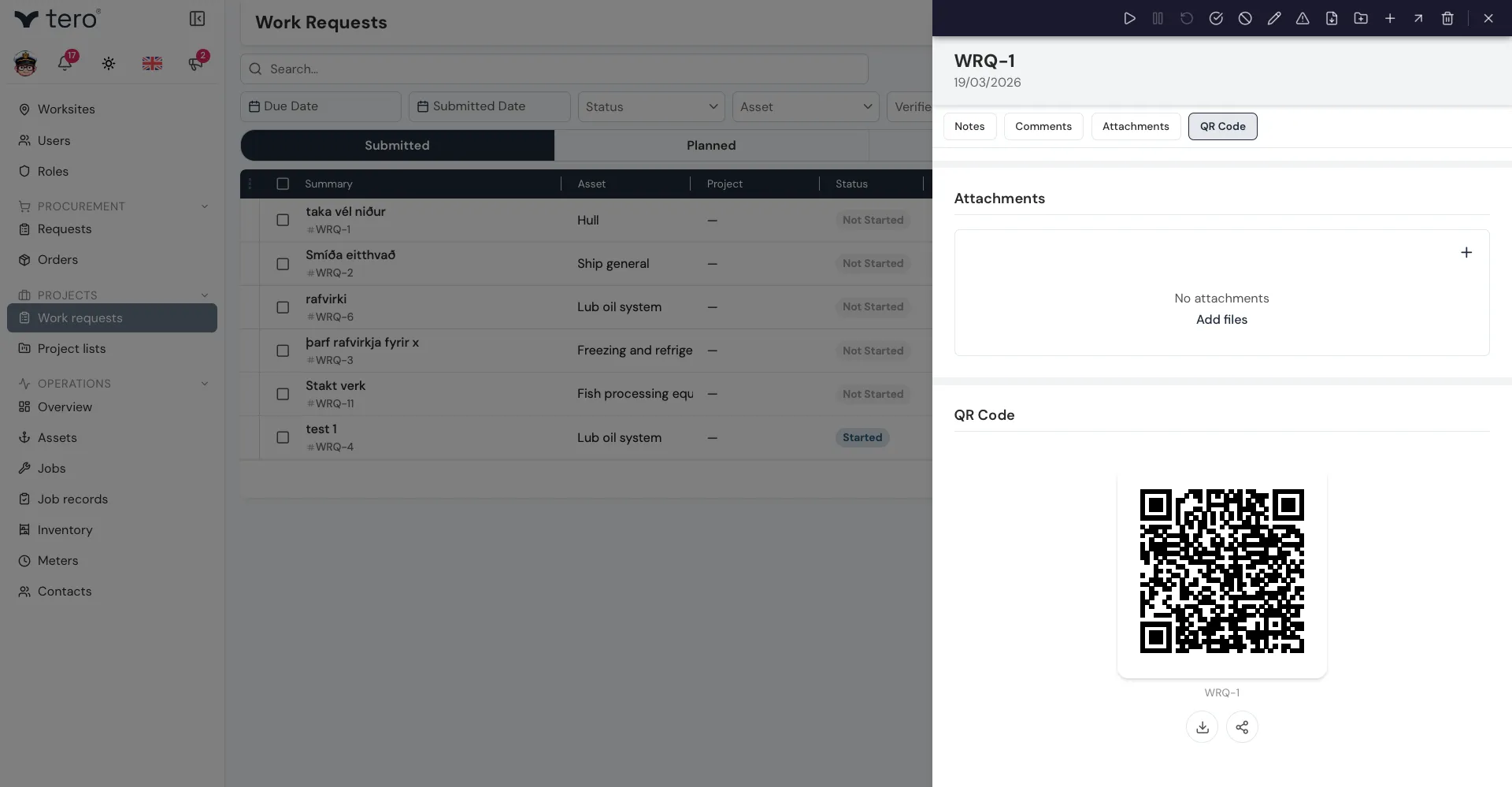
Two icon buttons sit under the code:
- Download (a down arrow over a tray) — saves the QR code as an image you can print or place in a document
- Share (three dots joined by lines) — shares the link and image using your device’s own share sheet. On a desktop browser, where there is no share sheet, it copies the link to the clipboard instead and confirms with “Link copied to clipboard”
See Generating and printing QR codes for the print workflow.
Scanning a sticker
Point your device’s camera at the code and open the link it offers. It opens the Tero record in your browser.
You need to be signed in. If you are not, you land at the login screen first and reach the record after signing in — the link still holds.
If a scan doesn’t reach the right record
- Nothing is recognised. The sticker may be dirty, damaged or too small in frame. Wipe it and fill more of the frame.
- It opens the wrong record. The sticker is probably a duplicate from another item. Open the record in Tero, compare its QR code with what is on the sticker, and reprint if they differ.
- You see “No access to this worksite”. The link is valid but points at a worksite your account cannot see. Ask an administrator for access to that worksite, or click Go to my dashboard to return to your own.