
Items and stock levels
An item is anything you stock and consume — a spare part, a consumable, a tool. Each item belongs to one worksite and holds that worksite’s stock of it.
The item record
Open Operations → Inventory and click any item. It opens in a side panel.
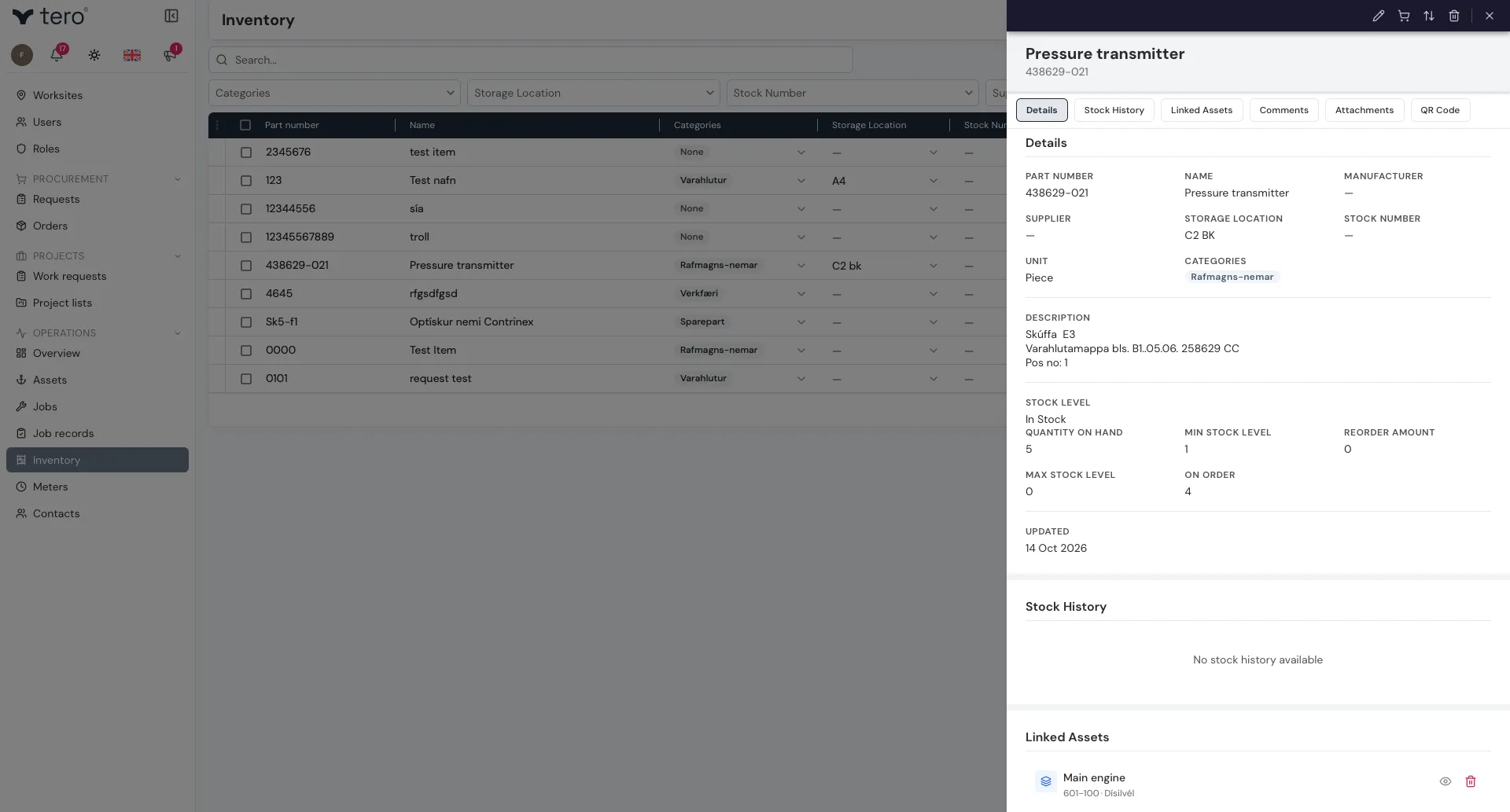
Fields on the item:
- Name and Part Number
- Description
- Categories (for filtering)
- Manufacturer and Supplier — picked from your contacts rather than typed
- Unit — Piece, Liter, Kilogram, Meter, Box, Set, and many more
- Storage Location and Stock Number — where the item is kept
The panel also has the item’s Stock History, the Linked Assets it’s a spare part for, comments, attachments, and a QR code.
Stock levels
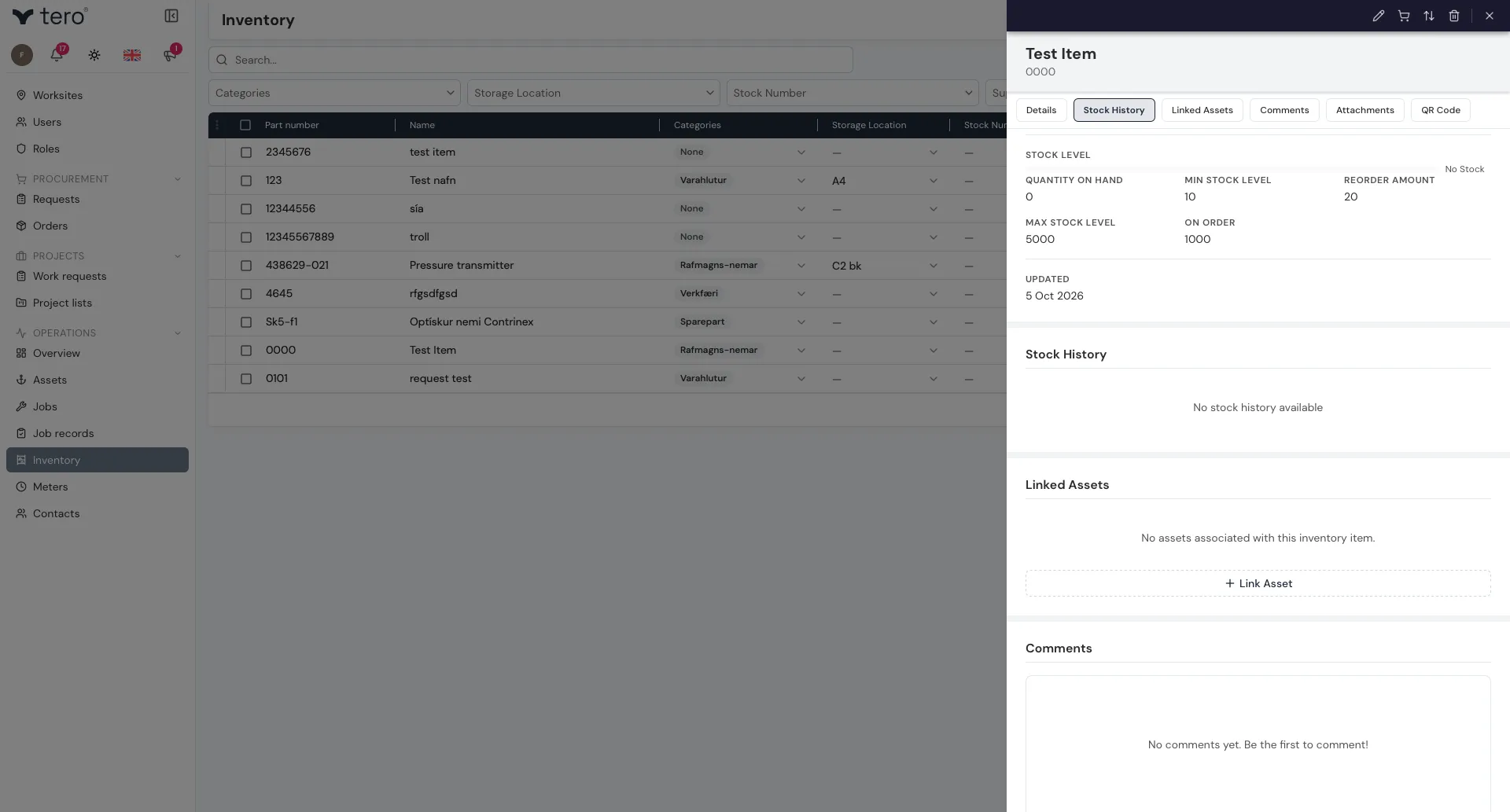
Each item shows:
- Quantity on hand — what’s actually in stock
- On order — what’s been ordered but not yet received
- Min Stock Level — the level at which the item counts as low
- Reorder amount — the stock level at which it’s time to reorder
- Max Stock Level — the most you want to hold
The Stock Level bar on the item turns from green to amber when the quantity drops to the reorder amount, and to red when it drops to the minimum.
Low stock
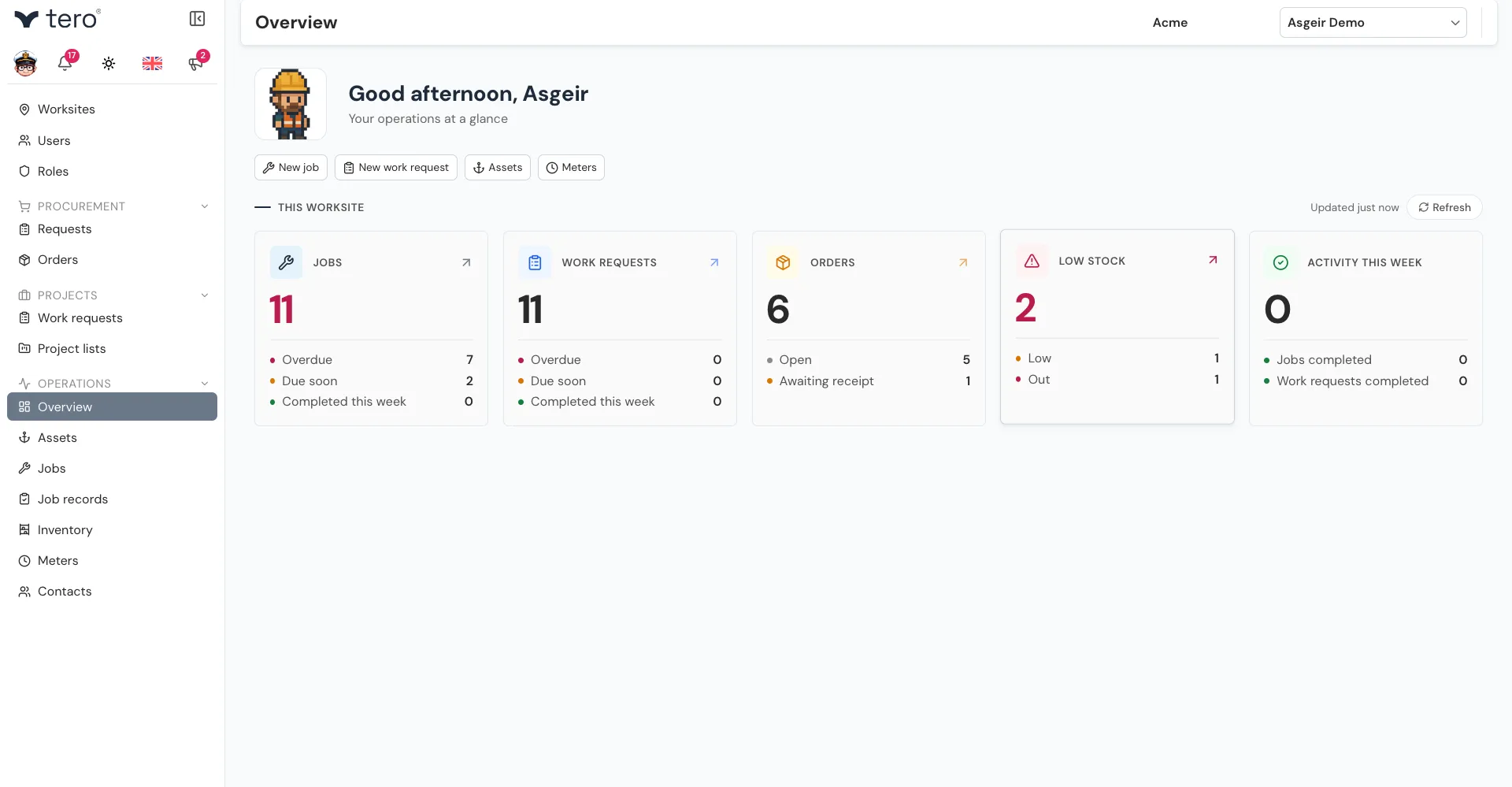
An item counts as Low Stock once its quantity reaches the reorder amount or the minimum, and No Stock when it reaches zero. The Low stock card on the Overview page shows how many items are low and how many are out.
Setting these correctly is what makes inventory “just-in-time” instead of constantly out of something. Typical pattern: minimum = 2× weekly usage, reorder amount = 4× weekly usage, allowing lead time for delivery.
Adjusting stock manually
If you take a stock count and discover a discrepancy, open the item and click the up-and-down-arrows icon (Adjust Stock) at the top of its side panel. You can also find Adjust Stock under the three vertical dots (⋮) at the start of the item’s row.
In the dialog, choose Add or Remove, enter the Quantity, and give a Reason. The dialog shows the current and new stock before you confirm. The change is recorded in the item’s Stock History, so you can audit it later.