
Working on a job
A job is a unit of maintenance work — service an engine, replace a seal, inspect a pump. It has a description, one or more assignees, a priority and a due date.
Opening a job
Find the job from one of:
- Jobs — the full list, under Operations in the sidebar
- The asset — open the asset and go to its Jobs tab
- Scanning the job’s QR code
The job opens in a side panel.
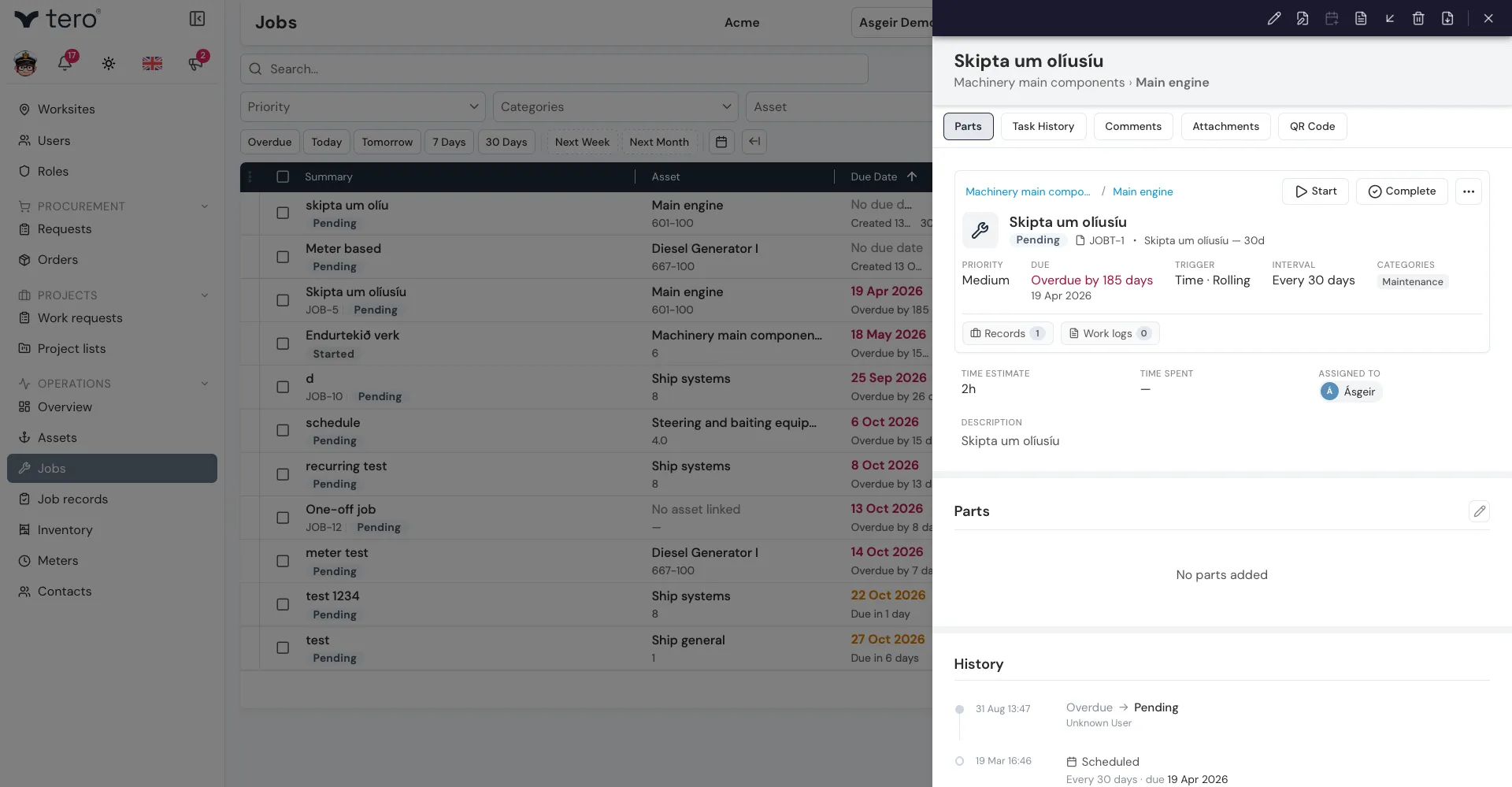
The job card
The card at the top of the panel shows:
- Asset — the asset this job is for, with the assets above it (click one to open it)
- Title — title of the job
- Status — Pending, Started, Paused, Overdue, Completed, or Cancelled (colored badge)
- Job template — on recurring jobs, a link to the job template this job is based on
- Priority — High / Medium / Low
- Due — when this job is due
- Trigger — Manual / Time / Meter / Time or Meter (triggered by whichever comes first)
- Interval — One time / Every # days / Every # units
- Categories — the categories this job belongs to
- Records and Work logs — links to the records and work logs under this job
Below the card:
- Time Estimate — how long the job is expected to take
- Time Spent — the total time logged on the job so far
- Assigned to — the people responsible
- Description — description of the job. Long descriptions are shortened; click Show more to read the rest.
Starting the job
Click Start (with a play icon) in the job card to change the status from Pending to Started. The time between starting and finishing is offered as the default Time spent when you complete the job.
If you’re interrupted, click the three horizontal dots (⋯) next to the buttons on the card and choose Pause. Time while the job is paused isn’t counted. To carry on, click Start again.
The same menu also has Work Log, for logging time without finishing the job, and Cancel.
Comments and attachments
Scroll down the panel, or click Comments in the row of section links at the top, to leave notes for the next shift or for your supervisor. Comments are timestamped and attributed to you.
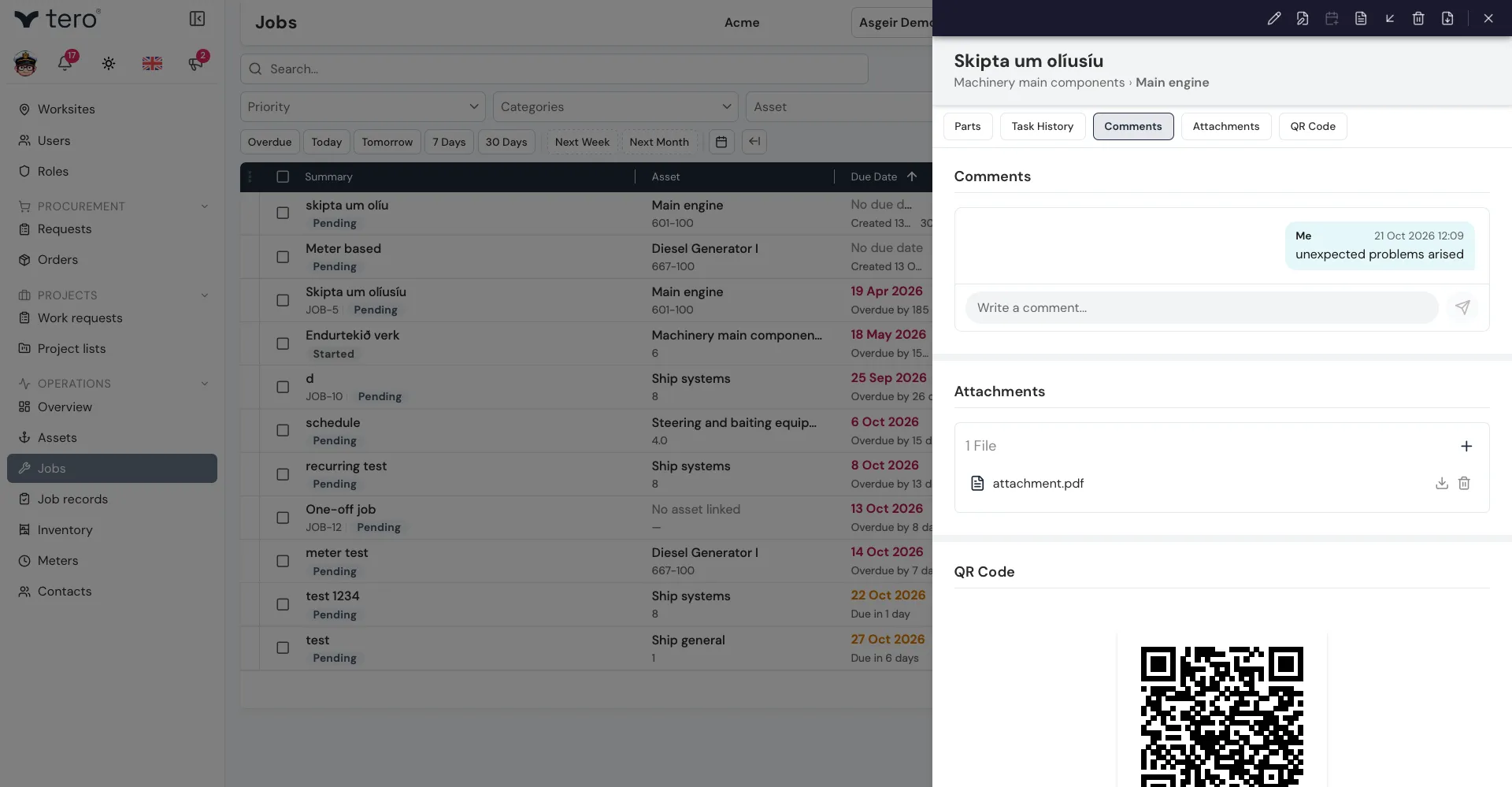
Add photos, documents, or other files in the Attachments section: click + to choose files, or drag them onto the section.
Finishing the job
When the work is done, click Complete (with a check-mark icon) in the job card to open the completion form — see Recording job completion.